


The Database Explorer
| The Connection Tool | Exporting to the Wolfram Language |
| Querying the Database | New Connection Wizard |
| Saving Queries |
The Database Explorer is a graphical interface to DatabaseLink. It provides a number of useful functions, such as managing connections and working with the data in a database. It can be launched by loading DatabaseLink and executing the command DatabaseExplorer.
If you find that the examples in this section do not work as shown, you may need to install or restore the example database with the "DatabaseLink`DatabaseExamples`" package, as described in "Using the Example Databases".
On Windows it appears as follows.
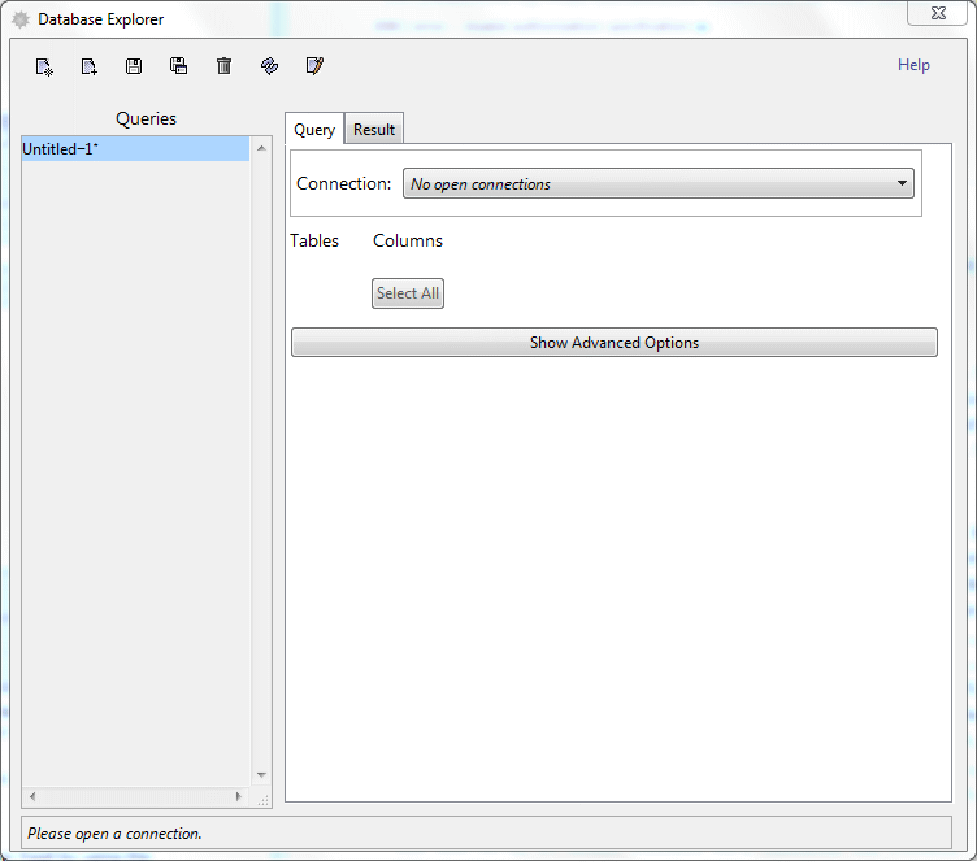
At this point, you can connect to a database and make queries from its tables. When you have selected the data, it can be used to create a report as a Wolfram Language notebook. This will allow you to work with the results in the Wolfram Language.
This version of the Database Explorer can only select and read data from a database.
The Connection Tool
From the main Database Explorer window, you can open the Connection Tool by using the Connect to a data source button. It can also be launched by executing the command OpenSQLConnection, described in "Database Connections: Establishing a Connection".
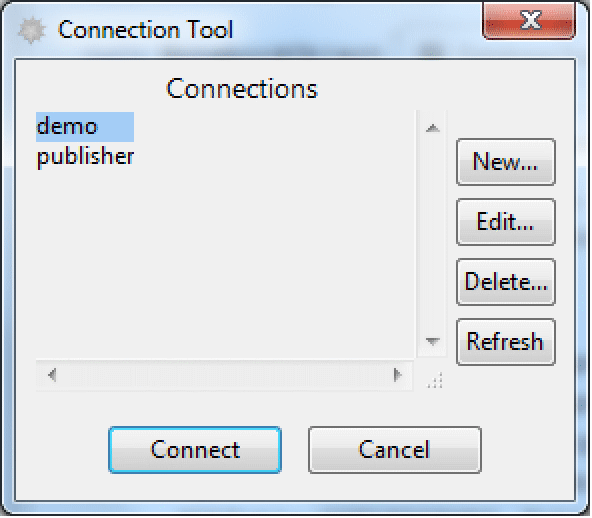
If you do not see the sample databases shown in the picture, you may need to install or restore the example database with the "DatabaseLink`DatabaseExamples`" package, as described in "Using the Example Databases".
The Connection Tool shows all of the database connections that appear in configuration files in DatabaseResources directories. The details of named connections and their configuration files are described in "Database Resources". From the Connection Tool, you can select a connection and edit or delete it. You can also create a new connection, as described in "New Connection Wizard".
You can use the Connect button to open a connection to the database that was selected and update the main Database Explorer window. You can now make queries from the database.
Querying the Database
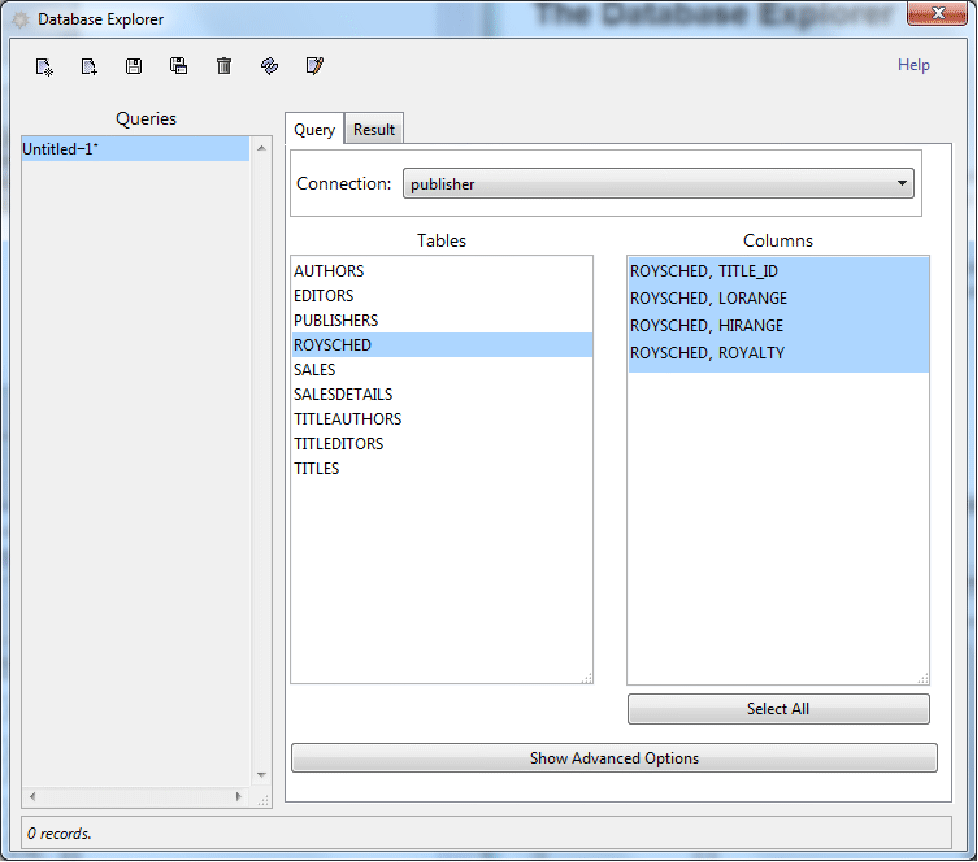
When you have connected to a database, as described previously, the Database Explorer shows the actual database in the Connection list and the tables in a scroll list. The following picture shows the result of connecting to the publisher database. This contains a number of tables. If you select one of the tables, its columns will be shown, and you can select any of them. A button for selecting all the columns is also provided.
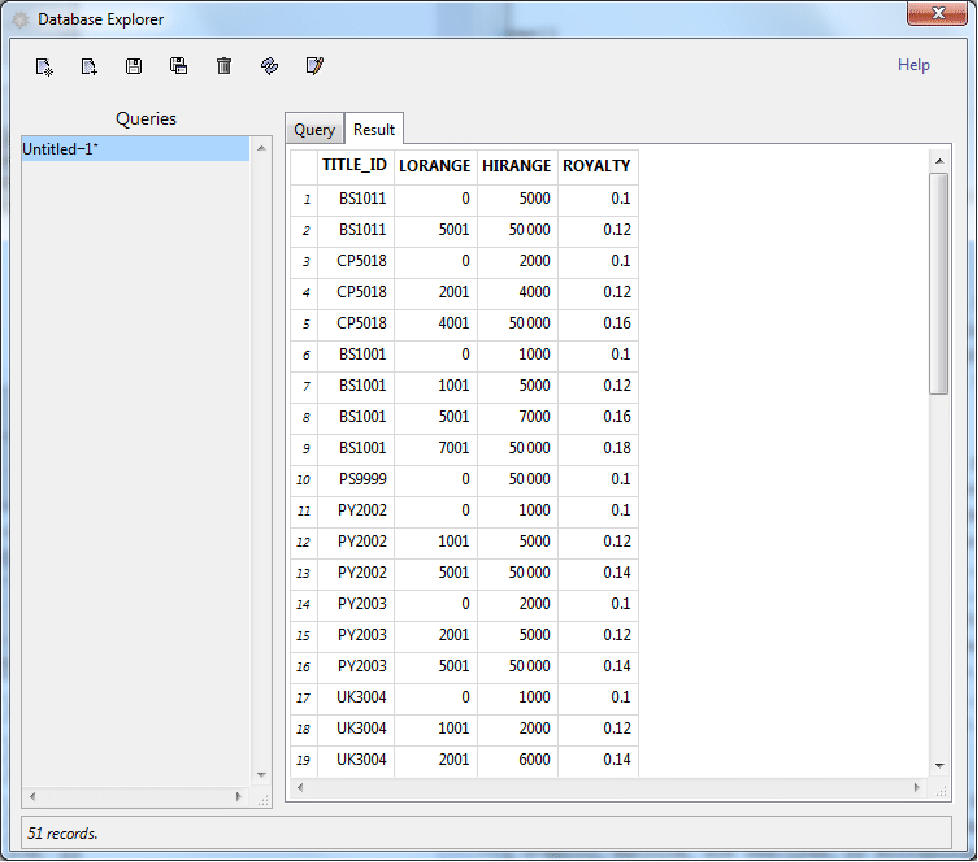
Clicking the Result tab selects the data from the table and selected columns. Here is an example.
The Query page also has an Advanced Options button. When you click this button, more options for forming the query are provided. For example, you can put various conditions on columns. Here is an example where data in the HIRANGE column must be greater than 5000.
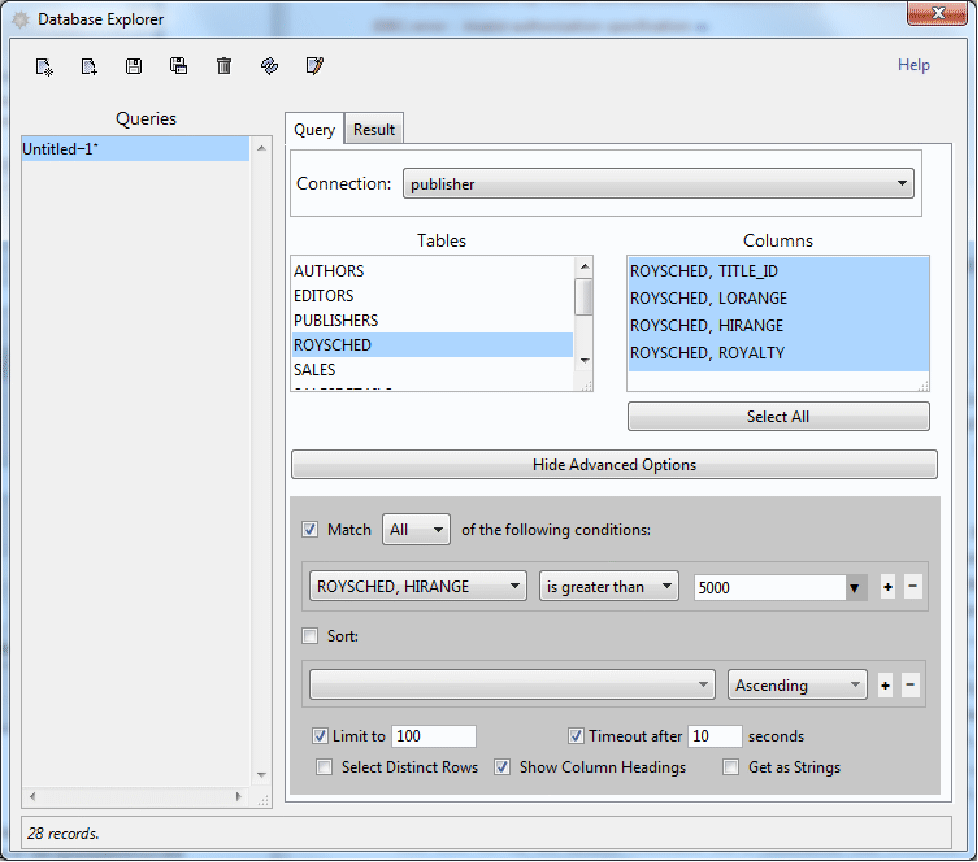
Clicking the Result tab will run the query and display the results.
Saving Queries
When you have set up a query, it can be saved with the Save the Query button. When you click this button, a Save File dialog box appears that includes a number of locations in DatabaseResources directories. (DatabaseResources directories are described in "Database Resources".) When you launch the Database Explorer, all the queries that have been saved are made available and can be run.
Exporting to the Wolfram Language
When you have set up a query, the data can be extracted into a report in a Wolfram Language notebook document. This can be used for printing or for further work in the Wolfram Language.
To generate a report, click the Create a notebook button. Here is a sample notebook.
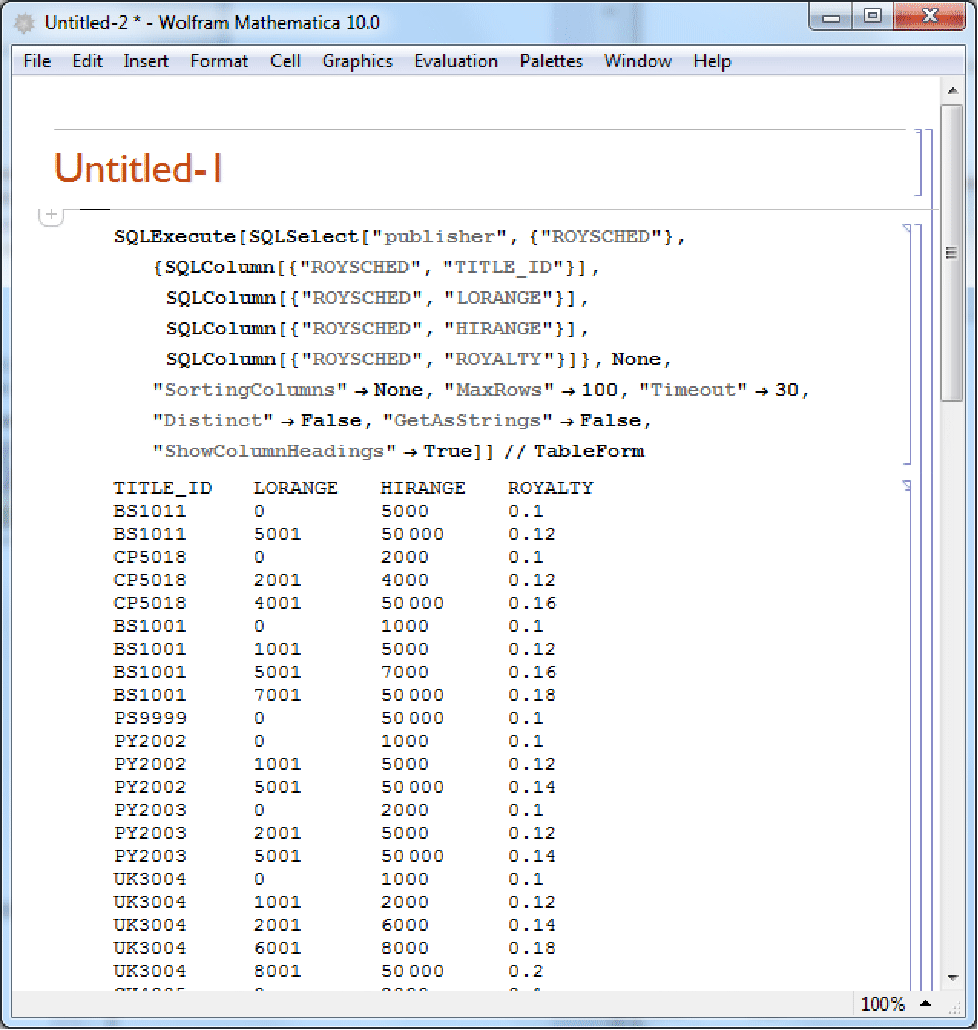
When the data is in the Wolfram Language, you can process it further with all the tools that the Wolfram Language provides.
New Connection Wizard
The New Connection Wizard is available from the Connection Tool, which can be launched either from the Database Explorer (described previously) or by executing the command OpenSQLConnection[] (described in "Database Connections: Establishing a Connection"). It will create a new named connection that will be available for future uses. The information about the connection will be written in a configuration file as described in "Database Resources".
The wizard takes you through the following steps for creating a new connection.
2. Specify name and description.
5. Specify URL, username, and password.
6. Specify further connection properties.
A view of the fourth step is shown in the following picture. In this step, the type of the database is selected from a list. There is also a button for entering a new type of database. The list includes types that have been installed in the system, as described in "Database Resources: JDBC Configuration".
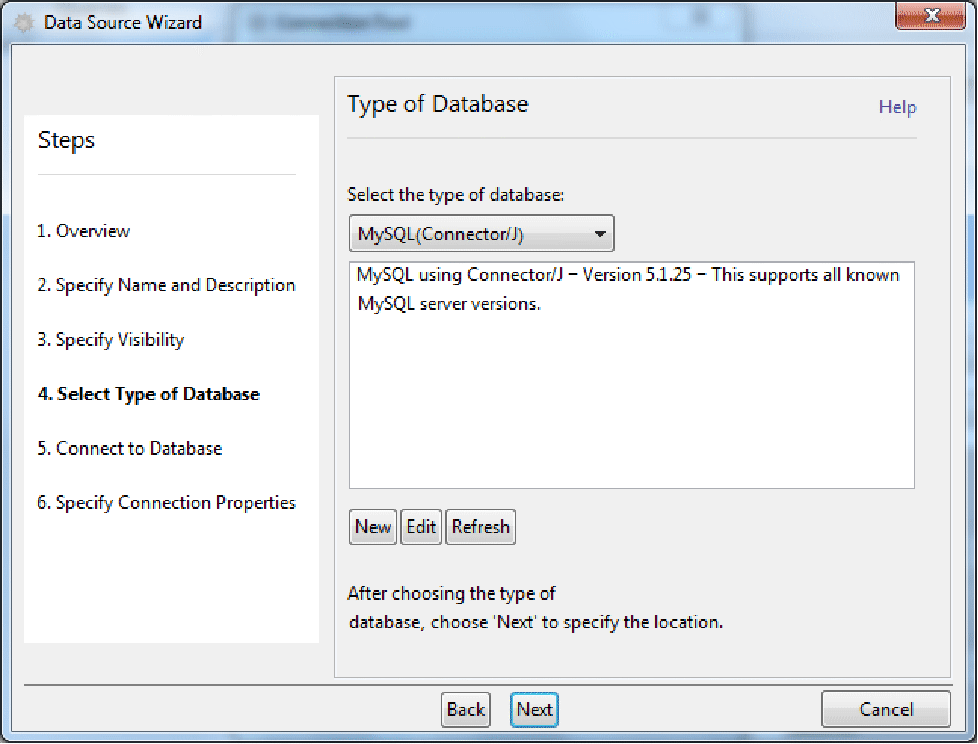
Each screen of the wizard has a full description. When it has finished, a new named connection has been created. This can be used by OpenSQLConnection and will show up in the Connection Tool.