


Entering a Single-Machine Password
| To Enter a Single-Machine Password in the Front End: | To Enter a Single-Machine Password from the Kernel: |
If the Wolfram System client cannot get a license from MathLM, you are given the option of entering a single-machine password. When using a single-machine password, the Wolfram System does not get a license from the license server. Depending on your license type, entering a single-machine password may require contacting Wolfram Research to purchase additional licenses.
When you choose Enter Password from the License Expired dialog boxes described in "Troubleshooting MathLM", the following dialog box appears. This dialog box also appears if the mathpass file cannot be found.
1. In the Product Activation dialog, select the Manual Activation option.
2. The following dialog box appears showing the MathID number for your machine. You can find your activation key and generate your password in your Wolfram User Portal account.
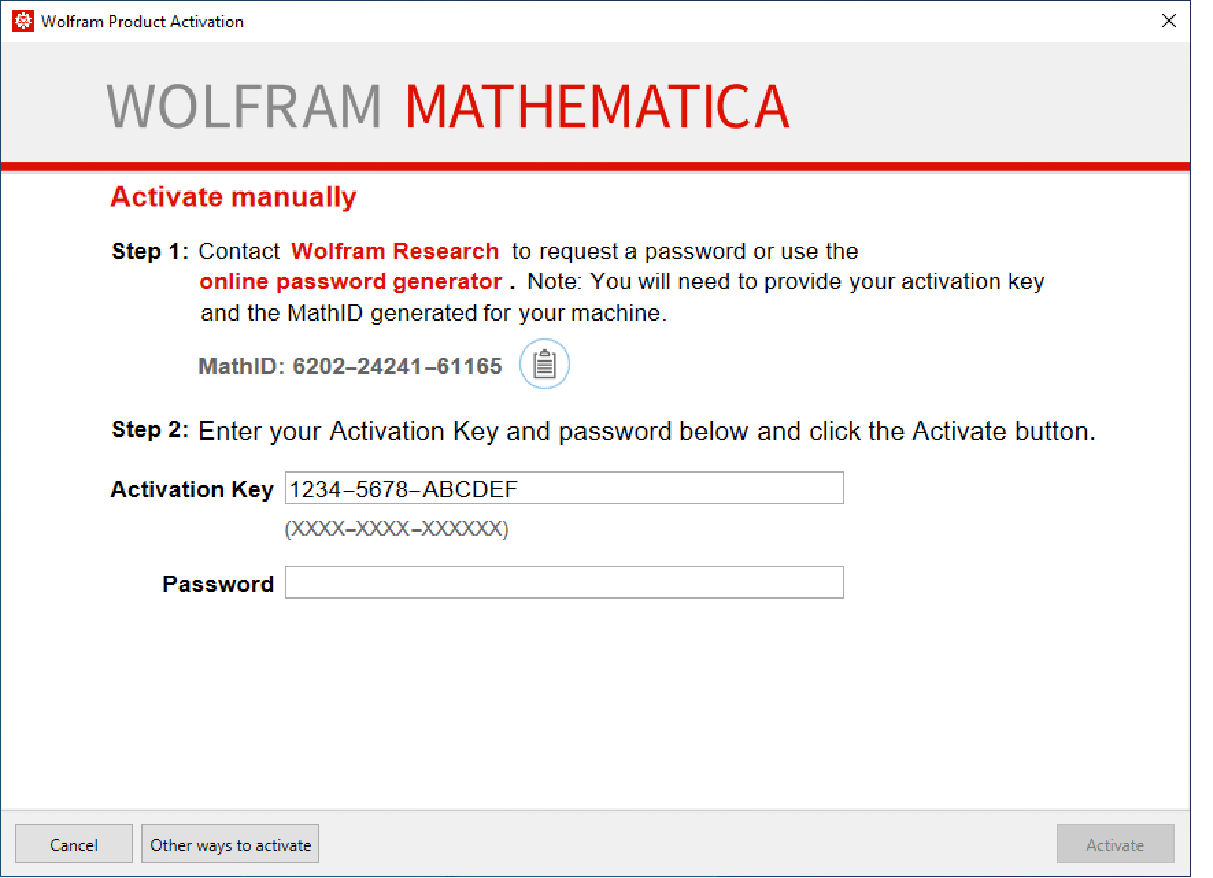
3. Enter your password and click OK.
When the Wolfram Language kernel cannot get a license from MathLM, the following message is displayed.
4. Your machine name and MathID number are included in this message. To obtain your password, contact Wolfram Research (see "Registration and Passwords" for details). You will need to supply your MathID number and the license number printed on your license certificate.
A password entry for a network license server was found, but no license was returned. The license server may not be responding, or no licenses are available from the server. You may need to contact your system administrator to start the license server, or wait until a license is available.

Machine name: hostname
MathID: 1234-56789-01234

You will need a valid activation key and password in order to proceed. Go to https://user.wolfram.com to register your activation key and obtain the password.
5. Enter your activation key and your password, and then press Enter to activate.