Two-Dimensional Expression Input
Two-Dimensional Expression Input
Moving the Cursor by Typing
You can use the keyboard to move the cursor forward or backward one character or one word at a time. You can also delete the character or word to the right or the left of the cursor, and you can move the cursor to the beginning or end of a line.
Getting out of an Expression
(1/1 + (1/2 + (1/3❘)))(1/1 + (1/2 + (1/3)❘))(1/1 + (1/2 + (1/3))❘)(1/1 + (1/2 + (1/3)))❘Selecting the Next Placeholder
❘(| | | |
| - | - | - |
| a | | |
| | b | |
| | | c |) ->(| | | |
| - | - | - |
| a | | |
| | b | |
| | | c |)(| | | |
| - | - | - |
| a | | |
| | b | |
| | | c |)(| | | |
| - | - | - |
| a | | |
| | b | |
| | | c |)(| | | |
| - | - | - |
| a | | |
| | b | |
| | | c |)(| | | |
| - | - | - |
| a | | |
| | b | |
| | | c |)(| | | |
| - | - | - |
| a | | |
| | b | |
| | | c |)(| | | |
| - | - | - |
| a | | |
| | b | |
| | | c |)❘(| | | |
| - | - | - |
| a | | |
| | b | |
| | | c |)(| | | |
| - | - | - |
| a | | |
| | b | |
| | | c |)(| | | |
| - | - | - |
| a | | |
| | b | |
| | | c |)(| | | |
| - | - | - |
| a | | |
| | b | |
| | | c |)(| | | |
| - | - | - |
| a | | |
| | b | |
| | | c |)(| | | |
| - | - | - |
| a | | |
| | b | |
| | | c |)Switching Positions
x❘^(1/(n))x^(1/(n❘))x❘^(1/(n))Subsuperscript[x, j, i❘]Subsuperscript[x, j❘, i]Subsuperscript[x, j, i❘]Underoverscript[∑, n = 1, ∞❘](1/n^2)Underoverscript[∑, n = 1❘, ∞](1/n^2)Underoverscript[∑, n = 1, ∞❘](1/n^2)Selecting the Next-Higher Subexpression
Subsuperscript[∫, 0, ϕ](1/Sqrt[1 - m Sin[θ❘]^2])ⅆθSubsuperscript[∫, 0, ϕ](1/Sqrt[1 - mSin[θ]^2])ⅆθSubsuperscript[∫, 0, ϕ](1/Sqrt[1 - mSin[θ]^2])ⅆθSubsuperscript[∫, 0, ϕ](1/Sqrt[1 - mSin[θ]^2])ⅆθSubsuperscript[∫, 0, ϕ](1/Sqrt[1 - m Sin[θ]^2])ⅆθSubsuperscript[∫, 0, ϕ](1/Sqrt[1 - m Sin[θ]^2])ⅆθSubsuperscript[∫, 0, ϕ](1/Sqrt[1 - m Sin[θ]^2])ⅆθSubsuperscript[∫, 0, ϕ](1/Sqrt[1 - m Sin[θ]^2])ⅆθSubsuperscript[∫, 0, ϕ](1/Sqrt[1 - m Sin[θ]^2])ⅆθSubsuperscript[∫, 0, ϕ](1/Sqrt[1 - m Sin[θ]^2])ⅆθDeleting to Destructure an Expression
(1/Sqrt[1 + x^2])❘(1/Sqrt[1 + x^2]❘)(1/Sqrt[1 + x^2❘])(1/Sqrt[1 + x^2❘])(1/Sqrt[1 + x^])(1/Sqrt[1 + x❘])(1/Sqrt[1 + ❘])(1/Sqrt[1❘])(1/Sqrt[])(1/)1❘❘Another Example
(|   |   |    |
| - | - | -- |
| a | b | c  |
| d | e | f❘ |
| g | h | i |)(| | | |
| - | - | - |
| a | b | c |
| d | e | |
| g | h | i |)(| | | |
| - | -- | - |
| a | b | c |
| d | e❘ | |
| g | h | i |)(| | | |
| - | - | - |
| a | b | c |
| d | | |
| g | h | i |)(| | | |
| -- | - | - |
| a | b | c |
| d❘ | | |
| g | h | i |)(| | | |
| - | - | - |
| a | b | c |
| | | |
| g | h | i |)(| | | |
| - | - | -- |
| a | b | c❘ |
| g | h | i |)(| | | |
| - | - | - |
| a | b | |
| g | h | i |)(| | | |
| - | -- | - |
| a | b❘ | |
| g | h | i |)(| | | |
| - | - | - |
| a | | |
| g | h | i |)(| | | |
| -- | - | - |
| a❘ | | |
| g | h | i |)(| | | |
| - | - | - |
| | | |
| g | h | i |)(❘g h i)❘g h i)Typing 
x❘Create a built-up fraction by pressing the Control and / keys at the same time. The placeholder in the denominator is already selected.
(x/)(x/y❘)Move the insertion point out of the fraction by pressing the Control key and the Space bar at the same time.
(x/y)❘Typing 
x❘Create a built-up fraction by pressing the Control and / keys at the same time. The placeholder in the denominator is already selected.
(x/)(x/y❘)Move the insertion point out of the fraction by pressing the Control key and the Space bar at the same time.
(x/y)❘(x/y) + z❘Typing 
x❘Create a built-up fraction by pressing the Control and / keys at the same time. The placeholder in the denominator is already selected.
(x/)(x/y❘)(x/y + z)❘Move the insertion point out of the fraction by pressing the Control key and the Space bar at the same time.
(x/y + z)❘Typing 
Create a built-up fraction with Ctrl+/. The numerator and denominator contain placeholders; the one in the numerator is selected.
(/)(x + y❘/)Select the placeholder in the denominator by pressing the Tab key. (Alternatively, you can select the placeholder by clicking it or dragging.)
(x + y/)(x + y/z | )(x + y/z)❘Another Way of Typing 
x + y❘Select the expression. (You can select by dragging, by pressing Ctrl+. repeatedly, or by clicking the expression repeatedly.)
x + y(x + y/)(x + y/z | )(x + y/z)❘Typing xm
x❘x^x^m❘Move the insertion point out of the exponent down to the baseline by pressing the Control key and the Space bar at the same time.
x^m❘Typing xm+yn
x❘x^x^m❘Move the insertion point out of the exponent down to the baseline by pressing the Control key and the Space bar at the same time.
x^m❘x^m + |x^m + y^n❘Typing xm+n
x❘x^x^m + n |Move the insertion point out of the exponent down to the baseline by pressing the Control key and the Space bar at the same time.
x^m + n |Typing 
x❘x^x^m❘x^(m/n❘)x^(m/n)❘Typing 
Sqrt[]Sqrt[x❘]Sqrt[x]❘Typing 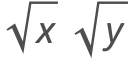
Sqrt[]Sqrt[x❘]Sqrt[x]❘Sqrt[x]Sqrt[y]❘Typing 
Sqrt[]Sqrt[x y❘]Sqrt[x y]❘Another Way of Typing 
x ySelect the expression. (You can select by dragging, by pressing Ctrl+. repeatedly, or by clicking the expression repeatedly.)
x ySqrt[x y | ]Sqrt[x y]❘Typing 
Sqrt[]Sqrt[x❘]x^(1/())x^(1/(n❘))Get out of the radical and down to the baseline by pressing the Control key and the Space bar at the same time.
x^(1/(n))❘Typing 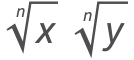
Sqrt[]Sqrt[x❘]x^(1/())x^(1/(n❘))Get out of the radical and down to the baseline by pressing the Control key and the Space bar at the same time.
x^(1/(n))❘x^(1/(n))y^(1/(n))❘Typing 
Sqrt[]Sqrt[x y❘]x y^(1/())x y^(1/(n❘))Get out of the radical and down to the baseline by pressing the Control key and the Space bar at the same time.
x y^(1/(n))❘Creating a New Matrix
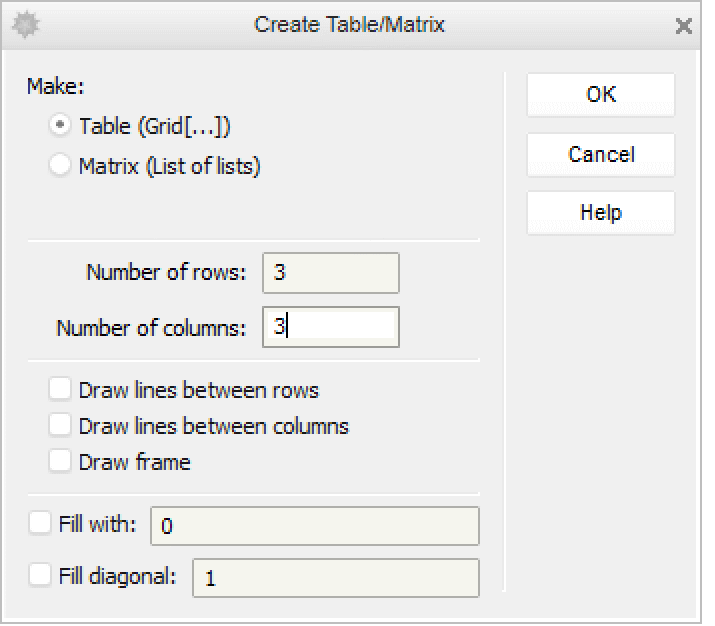
(| | | |
| - | - | - |
| 1 | 0 | 0 |
| 0 | 1 | 0 |
| 0 | 0 | 1 |)❘Filling in Placeholders in a Matrix
(| | |
| - | - |
| | |
| | |)Type an entry and select the next placeholder with the Tab key; repeat. (Use Shift+Tab to go backward.)
(| | |
| - | - |
| a | |
| | |)(| | |
| - | - |
| a | b |
| | |)(| | |
| - | - |
| a | b |
| c | |)(| | |
| - | - |
| a | b |
| c | d |❘)(| | |
| - | - |
| a | b |
| c | d |)❘Adding a New Column in a Matrix
Place the insertion point to the right of any entry; here the insertion point is to the right of the entry at the top left.
(|    |   |
| -- | - |
| a❘ | b |
| c  | d |)
Press the Control and Comma keys at the same time. A column of placeholders will appear, with the top one selected.
(| | | |
| - | - | - |
| a | | b |
| c | | d |)Adding a New Row in a Matrix
Place the insertion point to the right of any entry; here the insertion point is to the right of the entry at the top left.
(|    |   |
| -- | - |
| a❘ | b |
| c  | d |)
Press the Control and Enter keys at the same time. A row of placeholders will appear, with the first one selected.
(| | |
| - | - |
| a | b |
| | |
| c | d |)Typing Superscript xi
x❘x^x^i❘Move the insertion point out of the superscript position down to the baseline by pressing the Control key and the Space bar at the same time.
x^i❘Typing Superscript xi j
x❘x^To avoid multiplying the two superscripts, separate them with an invisible comma . To type the alias for an invisible comma, press the Escape key before and after typing a comma.
x^i j❘Get out of the superscript position down to the baseline by pressing the Control key and the Space bar at the same time.
x^i j❘Typing Superscript x2 3
x❘x^To avoid multiplying the two superscripts, separate them with an invisible comma . To type the alias for an invisible comma, press the Escape key before and after typing a comma.
x^23❘Get out of the superscript position down to the baseline by pressing the Control key and the Space bar at the same time.
x^23❘Typing Superscript xni
x❘x^X^n |x^Subscript[n, ]x^Subscript[n, i❘]x^Subscript[n, i] |x^Subscript[n, i]❘Typing xi
x❘Subscript[x, ]Subscript[x, i❘]Move the insertion point out of the subscript position up to the baseline by pressing the Control key and the Space bar at the same time.
Subscript[x, i]❘Typing xi j
x❘Subscript[x, ]Subscript[x, i❘]Subscript[x, i j❘]*To avoid multiplying the two subscripts, separate them with an invisible comma . To type the alias for an invisible comma, press the Escape key before and after typing a comma.
Subscript[x, i j❘]Move the insertion point out of the subscript position up to the baseline by pressing the Control key and the Space bar at the same time.
Subscript[x, i j]❘Typing x2 3
x❘Subscript[x, ]Subscript[x, 2❘]To avoid multiplying the two subscripts, separate them with an invisible comma . To type the alias for an invisible comma, press the Escape key before and after typing a comma.
Subscript[x, 23❘]Move the insertion point out of the subscript position up to the baseline by pressing the Control key and the Space bar at the same time.
Subscript[x, 23]❘Typing xni
Subscript[x, ]Subscript[x, Subscript[n, ]]Subscript[x, Subscript[n, i❘]]Subscript[x, Subscript[n, i]❘]Subscript[x, Subscript[n, i]]❘Typing 
x❘Overscript[x, ]Overscript[x, _❘]Move the insertion point out of the overscript position down to the baseline by pressing the Control key and the Space bar at the same time.
Overscript[x, _]❘Typing 
Overscript[, ]Overscript[, _❘]Overscript[, _]Overscript[x + y❘, _]Overscript[x + y, _]❘Typing 
x❘Underscript[x, ]Underscript[x, _❘]Move the insertion point out of the underscript position up to the baseline by pressing the Control key and the Space bar at the same time.
Underscript[x, _]❘Typing 
Underscript[, ]Underscript[x + y, ]Underscript[x + y, ]Underscript[x + y, _❘]Press the Control key and the Space bar at the same time to get out of the underscripted expression.
Underscript[x + y, _]❘Typing 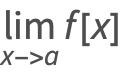
Underscript[lim, ]Underscript[lim, x❘]Underscript[lim, x -> ❘]Underscript[lim, x -> a]❘Underscript[lim, x -> a]f[x]❘