Using a Notebook Interface
Using a Notebook Interface
If you use your computer via a purely graphical interface, you will typically double‐click the Wolfram System icon to start the Wolfram System. If you use your computer via a textually based operating system, you will typically type the command WolframNB to start the Wolfram System.
use an icon or the Start menu | graphical ways to start the Wolfram System |
| mathematica | the shell command to start Mathematica |
text ending with Shift+Enter | input for the Wolfram Language (Shift+Return on some keyboards) |
choose the Exit menu item | exiting the Wolfram System (Quit on some systems) |
The notebook front end includes many menus and graphical tools for creating and reading notebook documents and for sending and receiving material from the Wolfram Language kernel.
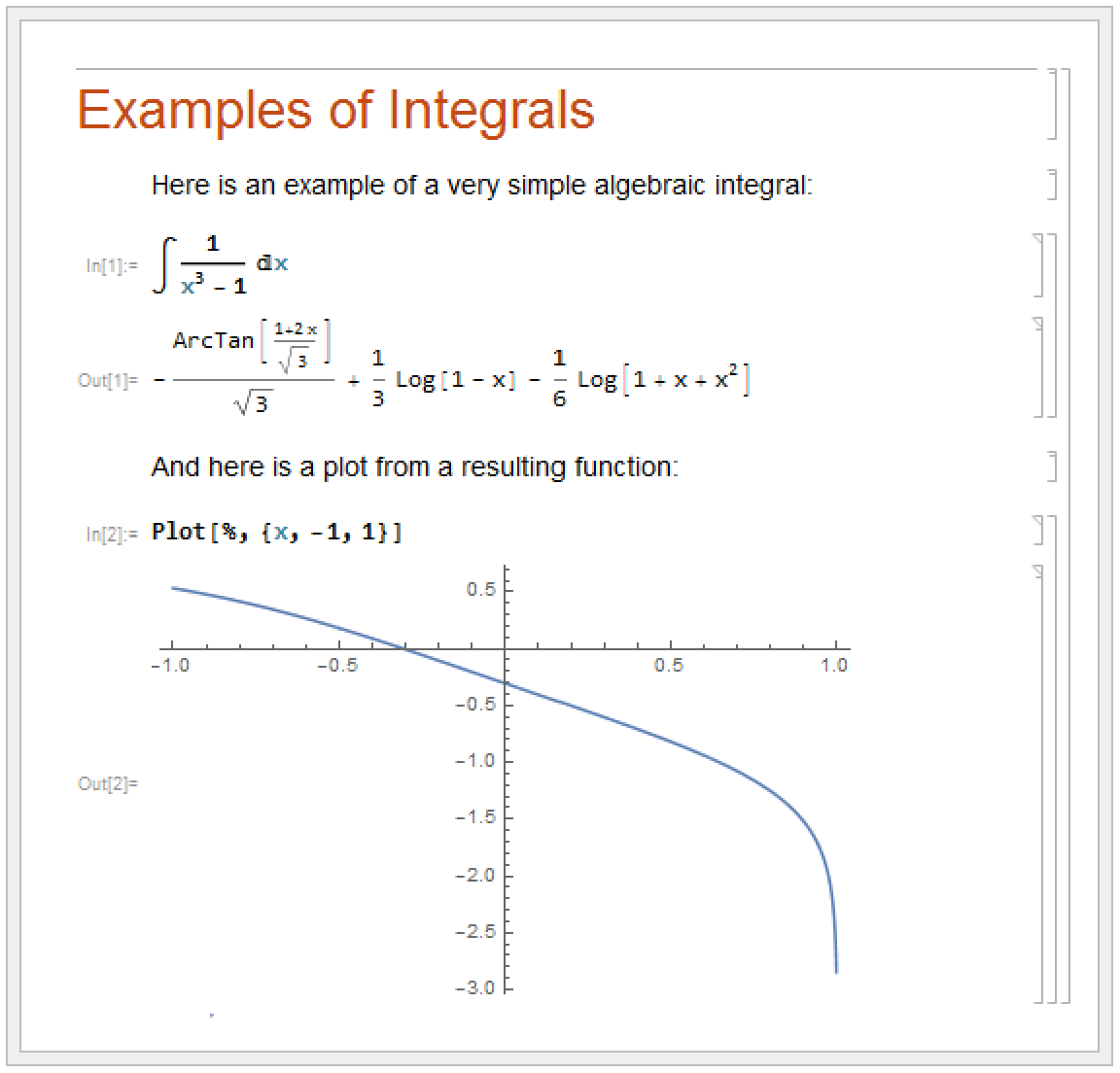
When the Wolfram System is first started, it displays an empty notebook with a blinking cursor. You can start typing right away. The Wolfram Language by default will interpret your text as input. You enter Wolfram Language input into the notebook, then type Shift+Enter to make the Wolfram Language process your input. (To type Shift+Enter, hold down the Shift key, then press Enter.) You can use the standard editing features of your graphical interface to prepare your input, which may go on for several lines. Shift+Enter tells the Wolfram System that you have finished your input. If your keyboard has a numeric keypad, you can use its Enter key instead of Shift+Enter.
After you send the Wolfram Language input from your notebook, Wolfram Language will label your input with In[n]:=. It labels the corresponding output Out[n]=. Labels are added automatically.
You type 2+2, then end your input with Shift+Enter. The Wolfram Language processes the input, then adds the input label In[1]:=, and gives the output.


The output is placed below the input. By default, input/output pairs are grouped using rectangular cell brackets displayed in the right margin.
In the Wolfram Language documentation, "dialogs" with the Wolfram System are shown in the following way:
With a notebook interface, you just type in 2+2. The Wolfram System then adds the label In[1]:=, and prints the result:
You should realize that notebooks are part of the "front end" to the Wolfram System. The Wolfram Language kernel which actually performs computations may be run either on the same computer as the front end, or on another computer connected via a network. Sometimes, the kernel is not even started until you actually do a calculation with the Wolfram Language.
The built-in Wolfram Language Documentation Center (Help ▶ Documentation Center), where you might be reading this documentation, is itself an example of a Wolfram System notebook. You can evaluate and modify examples in place, or type your own examples.
In addition to the standard textual input, the Wolfram Language supports the use of generalized, non-textual input such as graphics and user interface controls, freely mixed with textual input.
To exit the Wolfram System, you typically choose the Exit menu item in the notebook interface.