


Word Processing in Notebooks
You can set the following cell options from the Format menu: style, font, face, size, text color, background color, cell dingbat, text alignment, text justification, and word wrapping.
To Apply an Option:

Choose the option desired from the Format menu, such as the background color.

To Spell Check a Notebook:
Choose Edit ▶ Check Spelling. The Wolfram System begins to spell check the notebook at the position of the cursor. At any misspelling or unknown word, the Wolfram System displays the word and recommends a replacement.
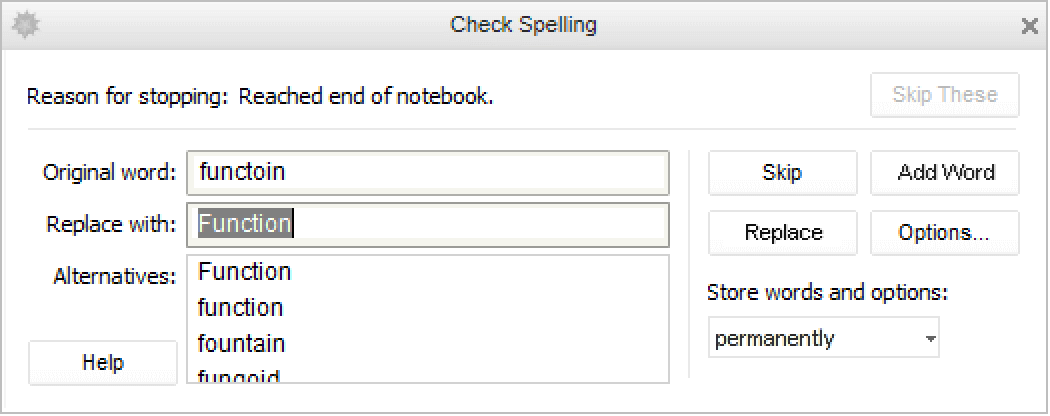
You can use the popup menu to add a word to the dictionary associated with the notebook, session, cell, or your global preferences.
Tip
- Choose Insert ▶ Page Break to insert a page break in a notebook.
To Type a Formula into a Text Cell:
Place the cursor in the text cell where you want to enter the formula. Press Ctrl+( or Ctrl+9. A placeholder box appears in the cell.

Using keystrokes, enter the formula (see "Entering Input in Notebooks").

Inline Cells
You can copy and paste entire cells into other cells. For example, you can include typeset formulas from input cells or embed graphics in a text cell.
To Paste One Cell inside Another:



Hyphenation
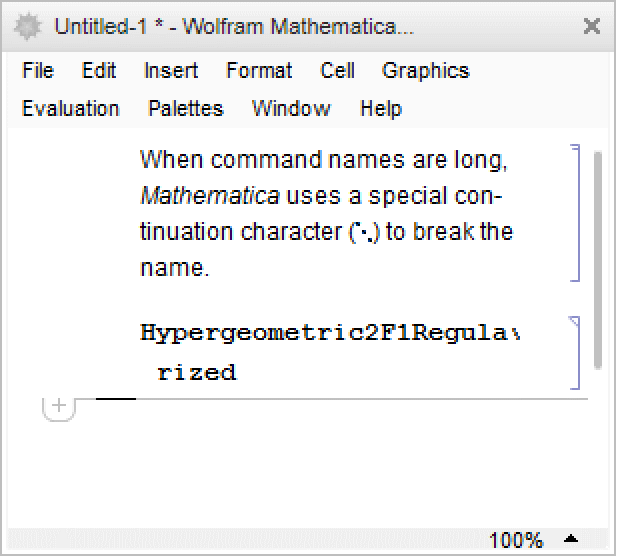
The Wolfram System can hyphenate words in text cells if you set Hyphenation->True. When command names are long, the Wolfram System uses a special continuation character (⋱) to break the name. You can control hyphenation using the Option Inspector. See "Option Inspector" for more information.
Tip
- To create a new cell in the most recent style, press Alt+Enter. The new cell will appear below the most recent cell.