
InstallMCPServer
InstallMCPServer["application"]
installs a predefined Wolfram MCP server for the specified application.
InstallMCPServer["application",server]
installs the MCPServerObject specified by server.
InstallMCPServer[File[…],server]
installs the MCP server to the specified file.
InstallMCPServer[{"application",directory},server]
installs the MCP server for a project contained in directory.
Details
- The value for server can be one of the following:
-
"name" the name of an existing MCPServerObject <…> an association corresponding to an LLMConfiguration LLMConfiguration[…] an LLMConfiguration MCPServerObject[…] an MCPServerObject - Some predefined MCP servers that can be specified by name are:
-
"WolframAlpha" an MCP server that is optimized for retrieving information from WolframAlpha "WolframLanguage" an MCP server that is optimized for writing and evaluating Wolfram Language code "Wolfram" a blend of WolframAlpha and Wolfram Language functionality - Additionally, any other MCP servers you have created with CreateMCPServer can be referenced by name.
- Some possible values for "application" are:
-
"ClaudeCode" Claude Code "ClaudeDesktop" Claude Desktop "Codex" Codex "CopilotCLI" GitHub Copilot CLI "Cursor" Cursor "GeminiCLI" Gemini CLI "OpenCode" OpenCode "VisualStudioCode" Visual Studio Code - InstallMCPServer[{"application",directory},server] is used for applications that support directory-based projects, such as "ClaudeCode" and "OpenCode".
- InstallMCPServer accepts the following options:
-
ApplicationName Automatic specify the application name when installing to a file EnableMCPApps True whether to enable MCP Apps support ProcessEnvironment Automatic additional environment variables to supply ToolOptions options to customize behavior of default tools - The value given for ToolOptions should be an association with keys that correspond to default tool names, and values specified as an association of tool options.
- Evaluate $DefaultMCPToolOptions to get the full set of available options and their default values.
Examples
open all close allNeeds["Wolfram`AgentTools`"]Basic Examples (1)
Install the default MCP server for Claude Desktop:
InstallMCPServer["ClaudeDesktop"]UninstallMCPServer["ClaudeDesktop"]Scope (4)
Install a Wolfram|Alpha-specific MCP server:
InstallMCPServer["ClaudeDesktop", "WolframAlpha"]UninstallMCPServer["ClaudeDesktop", "WolframAlpha"]Install a Wolfram Language MCP server for Cursor:
InstallMCPServer["Cursor", "WolframLanguage"]%["MCPServerObject"]The tools available to the server:
%["Tools"]UninstallMCPServer["Cursor", "WolframLanguage"]Install a custom MCP server defined by an LLMConfiguration:
config = LLMConfiguration[<|"Tools" -> {LLMTool["PrimeFinder", {"n" -> "Integer"}, Prime[#n]&]}|>]server = CreateMCPServer["My MCP Server", config]InstallMCPServer["ClaudeDesktop", server]Deleting an MCP server automatically uninstalls it:
DeleteObject[server]Install an MCP server for a specific OpenCode project directory:
InstallMCPServer[{"OpenCode", File["MCPServer"]}, "WolframLanguage"]Use the same pattern to uninstall it:
UninstallMCPServer[{"OpenCode", File["MCPServer"]}, "WolframLanguage"]Generalizations & Extensions (1)
Using a named application for the first argument is a convenient shortcut for specifying the proper configuration file:
installed = InstallMCPServer["Cursor", "WolframLanguage"]Using a named application chooses an appropriate configuration file based on the current operating system:
location = installed["Location"]UninstallMCPServer["Cursor", "WolframLanguage"]This is equivalent to InstallMCPServer["Cursor", "WolframLanguage"]:
InstallMCPServer[location, "WolframLanguage"]FilePrint[location]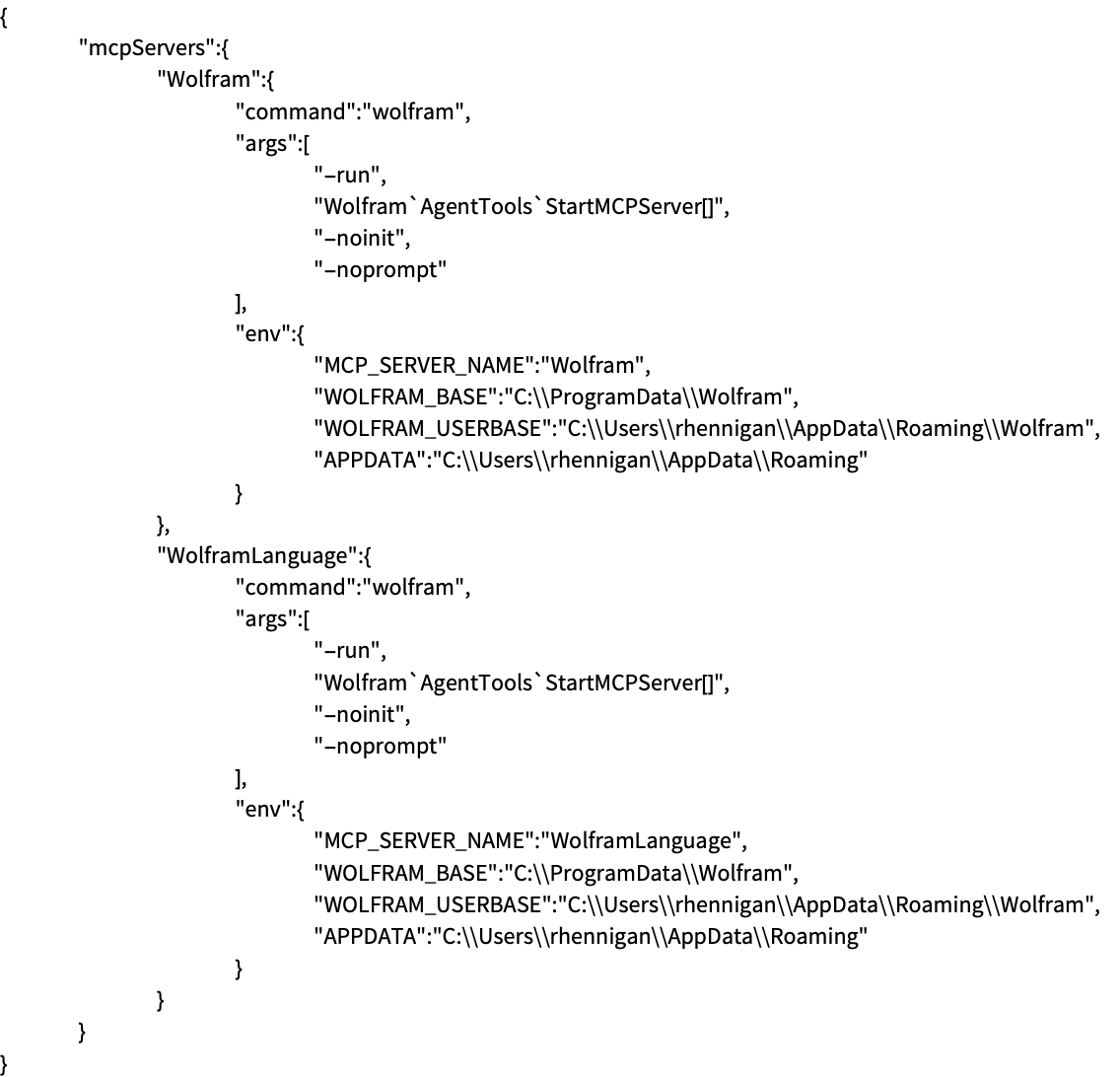
UninstallMCPServer removes the appropriate entry:
UninstallMCPServer["Cursor", "WolframLanguage"]FilePrint[location]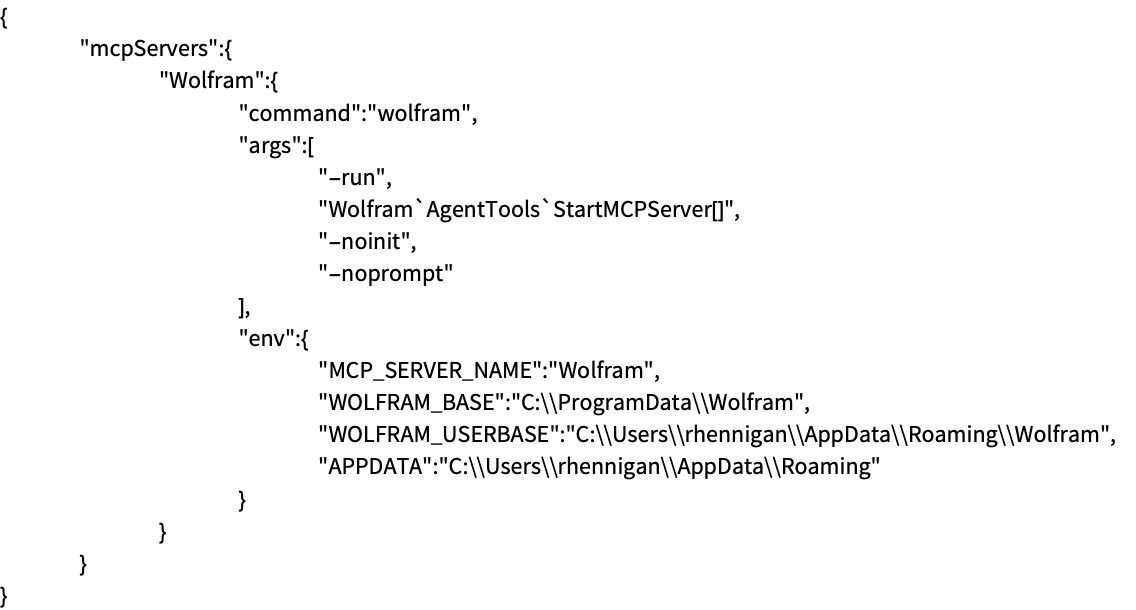
Options (6)
ApplicationName (2)
Specify the application when installing to a specific file:
InstallMCPServer[File[FileNameJoin[{$TemporaryDirectory, CreateUUID[]}]], "ApplicationName" -> "OpenCode"]FilePrint[%["Location"]]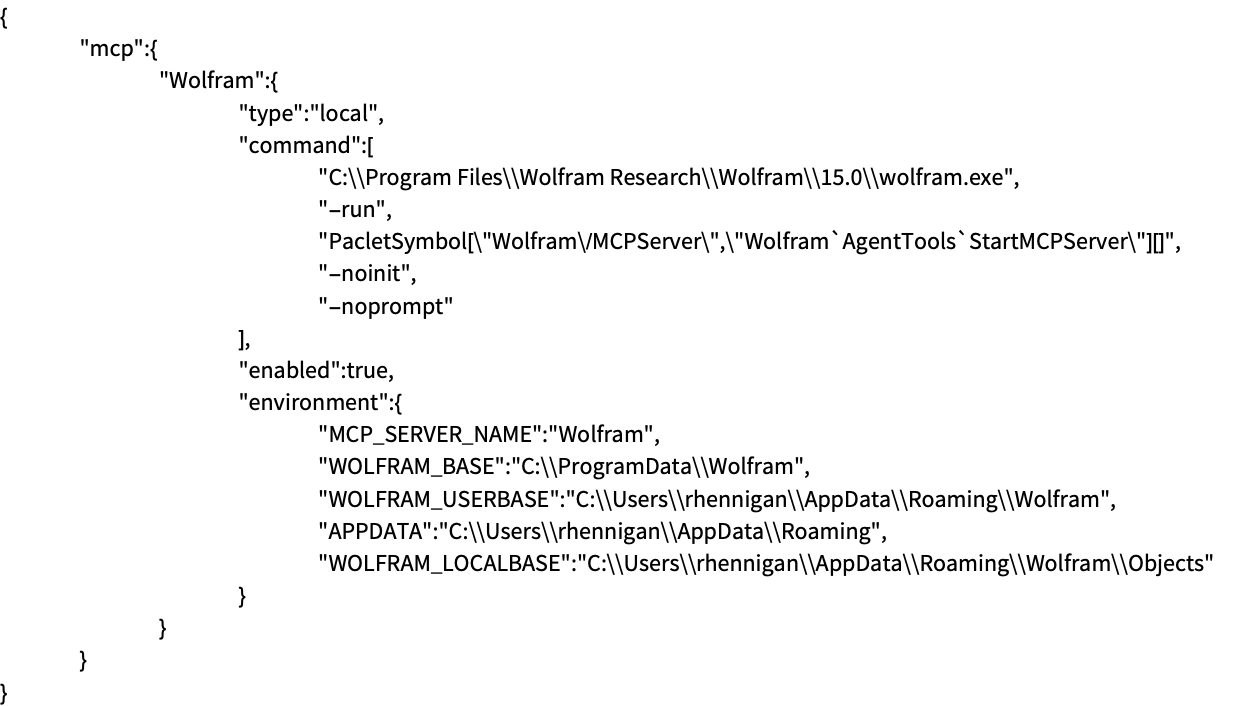
Specifying a different application name can imply a different configuration format:
InstallMCPServer[File[FileNameJoin[{$TemporaryDirectory, CreateUUID[]}]], "ApplicationName" -> "Codex"]FilePrint[%["Location"]]
EnableMCPApps (1)
In applications that support the MCP Apps extension, some tool calls will have rich interactive formatting:
[image]To disable this feature, set EnableMCPApps to False:
InstallMCPServer["ClaudeDesktop", "EnableMCPApps" -> False]When disabled, the outputs of tool calls may be hidden by default, depending on the application:
[image][image]ProcessEnvironment (1)
Customize the environment variables that should be passed to the MCP server:
installed = InstallMCPServer["ClaudeDesktop", ProcessEnvironment -> <|"MY_VARIABLE" -> 1337|>]FilePrint[installed["Location"]]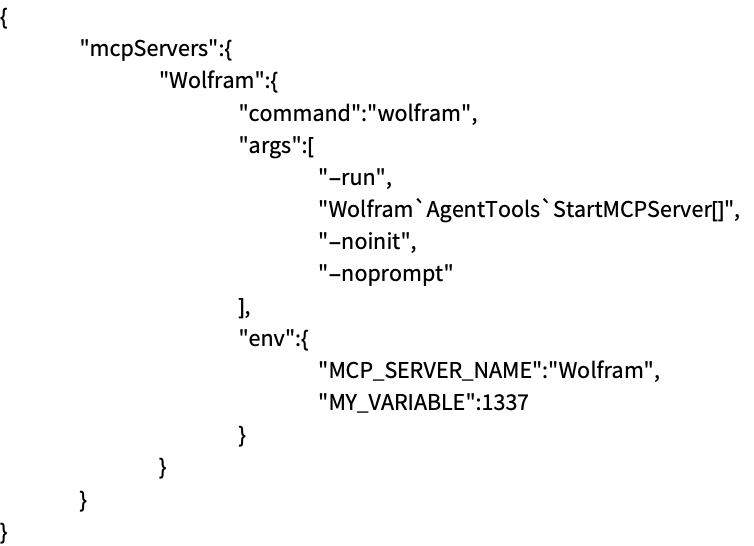
UninstallMCPServer["ClaudeDesktop", "Wolfram"]ToolOptions (2)
Use a separate sandboxed local kernel for the WolframLanguageEvaluatorTool:
InstallMCPServer["Claude", "Wolfram", "ToolOptions" -> <|"WolframLanguageEvaluator" -> <|"Method" -> "Local"|>|>]Get all the available options and their default values for built-in tools with $DefaultMCPToolOptions:
$DefaultMCPToolOptionsPossible Issues (1)
If the target JSON configuration file contains comments, installation will fail:
InstallMCPServer["Cursor", "WolframLanguage"]


FilePrint[File["C:/Users/rhennigan/.cursor/mcp.json"]]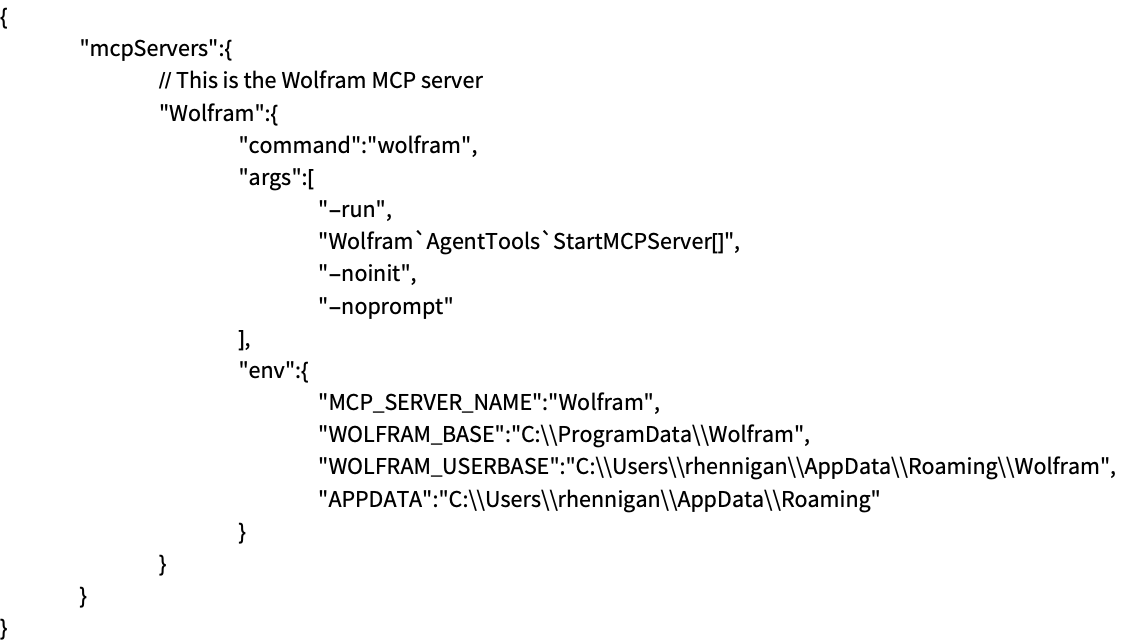
To work around this, you can copy the relevant part of the JSON configuration for an MCP server and manually insert it:
MCPServerObject["WolframLanguage"]["JSONConfiguration"]FilePrint[File["C:/Users/rhennigan/.cursor/mcp.json"]]