HatchShading
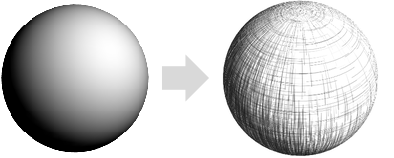
続くオブジェクトを間隔が狭い平行線を使って描画するように指定する三次元グラフィックス指示子である.
HatchShading[d]
シェーディング密度 d を使う.
HatchShading[col]
指定した色 col の線を使う.
HatchShading[d,col]
指定した色 col と密度 d の線を使う.
詳細
- HatchShadingはクロスハッチングとしても知られている.
- HatchShadingは,通常,狭い間隔の平行線で色調効果を出すために使用される.
- HatchShading[d,col]は,色が col の線を全体的な密度 d によって変化させるように指定する.
- 線の密度は曲面の光度によって決まる.余り密ではない部分は光度が高い部分である.
- 密度 d は0から1までである.値が高い程,面積あたりの線が多くなる.
- 色 col は,RGBColor,Hue,あるいは他の任意の色指定で定義できる.
- HatchShading[d]では,線の色はBlackであるとみなされる.
- HatchShading[col]は密度0.5を使う.
- HatchShading[]は,事実上,HatchShading[0.5,Black]と等価である.
- Lighting"Accent"の設定は方向性がある照明を使って曲面の色を忠実に再現する.
例題
すべて開く すべて閉じる例 (4)
方向がある光を使用して,単位球にハッチシェーディングを適用する:
Graphics3D[{HatchShading[], Sphere[]}, Lighting -> "Accent"]Graphics3D[{HatchShading[.6, Blue], KnotData["SolomonSeal", "ImageData"]}, Lighting -> "Accent"]Plot3D[Style[Sin[x y], HatchShading[.7, Red]], {x, 0, 3}, {y, 0, 3}, Mesh -> None, TextureCoordinateFunction -> ({#1, #3}&), Lighting -> "Accent"]Graphics3D[{HatchShading[], ExampleData[{"Geometry3D", "Beethoven"}, "GraphicsComplex"]}, Boxed -> False, Lighting -> "Accent"]スコープ (12)
基本的な用法 (5)
グラフィックスプリミティブにハッチシェーディングを適用する:
Graphics3D[{HatchShading[], #}, Lighting -> "Accent"]& /@ {Sphere[], CapsuleShape[], Cone[]}SphericalPlot3D[1 + 2Cos[2θ], {θ, 0, Pi}, {ϕ, 0, 2Pi}, Axes -> False, PlotStyle -> HatchShading[], PlotPoints -> 40, Lighting -> "Accent" ]BarChart3D[Range[5], ChartElements -> [image], ChartStyle -> HatchShading[]]Graphics3D[{HatchShading[], ExampleData[{"Geometry3D", "Beethoven"}, "GraphicsComplex"]}, Lighting -> "Accent"]HatchShading[]指定 (4)
引数がないHatchShadingはグレートーンを使用する:
Graphics3D[{HatchShading[], Sphere[]}, Lighting -> "Accent"]Graphics3D[{HatchShading[#], Sphere[]}, Lighting -> "Accent"]& /@ {.15, .4, .7}Graphics3D[{HatchShading[#], Sphere[]}, Lighting -> "Accent"]& /@ {Red, Green, Blue}LightDarkSwitchedを使ってライトモードとダークモードに異なる色を指定する:
graphic = Graphics3D[{HatchShading[LightDarkSwitched[Red, Blue]], Sphere[]}, Lighting -> "Accent"];{LightModePane[graphic], DarkModePane[graphic]}照明 (3)
HatchShadingはすべてのタイプの照明に使うことができる:
lights = {{"Ambient", LightGray}, {"Point", White, ImageScaled[{1, 1, 2}]}, {"Directional", White, ImageScaled[{1, 1, 2}]}, {"Spot", White, {{1, -1, 1}, {0, 0, 0}}, Pi / 4}};
Graphics3D[{HatchShading[], Sphere[]}, Lighting -> {#}]& /@ lightsGraphics3D[{HatchShading[], Sphere[]}, Lighting -> {{"Directional", Red, ImageScaled[{1, -0.5, 1}]}, {"Directional", Green, ImageScaled[{-1, -0.5, 1}]}, {"Directional", Blue, ImageScaled[{0, 1, 1}]}, {"Ambient", GrayLevel[0.2]}}]Graphics3D[{HatchShading[], Sphere[]}, Lighting -> #] & /@ {"Accent", Automatic}考えられる問題 (2)
Graphics3D[{HatchShading[], Sphere[]}]方向性がある単一のライトを使って標準的なハッチシェーディング効果を出す:
Graphics3D[{HatchShading[], Sphere[]}, Lighting -> {{"Directional", White, ImageScaled[{1, 1, 2}]}}]多面体や塗り潰されたグラフィックスオブジェクトの表面にはシェーディング効果は適用されない:
Graphics3D[{Red, HatchShading[0], Sphere[]}]テキスト
Wolfram Research (2020), HatchShading, Wolfram言語関数, https://reference.wolfram.com/language/ref/HatchShading.html.
CMS
Wolfram Language. 2020. "HatchShading." Wolfram Language & System Documentation Center. Wolfram Research. https://reference.wolfram.com/language/ref/HatchShading.html.
APA
Wolfram Language. (2020). HatchShading. Wolfram Language & System Documentation Center. Retrieved from https://reference.wolfram.com/language/ref/HatchShading.html