AuthenticationDialog
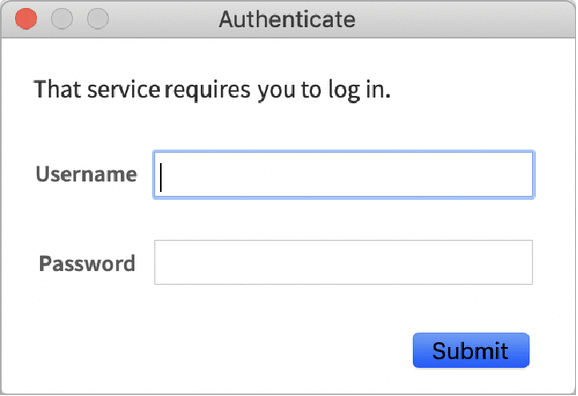
ユーザ名/パスワードの認証情報を入力する標準ダイアログを始める.
AuthenticationDialog["type"]
指定された標準タイプの認証ダイアログを始める.
AuthenticationDialog[{"key1","key2", …}]
指定されたキーの値を要求する認証ダイアログを始める.
AuthenticationDialog[arg,func]
関数 func をダイアログの戻り値に適用する.
詳細とオプション
- type の可能な値には次がある.
-
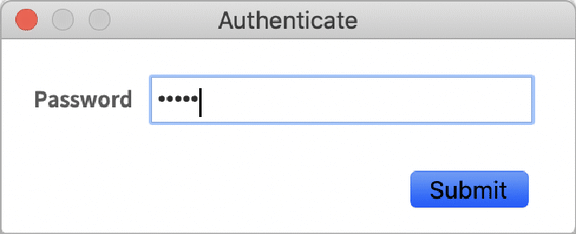
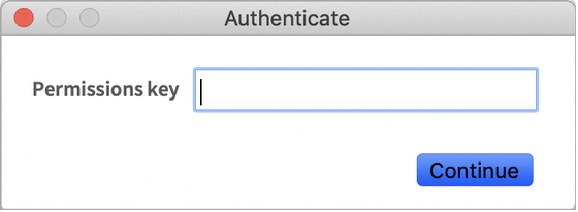
"UsernamePassword" ユーザ名とパスワードのフィールドがあるダイアログ "Password" パスワードのフィールドがあるダイアログ "PermissionsKey" PermissionsKeyを入力するためのダイアログ "SecuredAuthenticationKey" SecuredAuthenticationKeyを入力するためのダイアログ - AuthenticationDialog[]は,タイプ"UsernamePassword"のダイアログを表示する.
- AuthenticationDialog[arg]はAuthenticationDialog[arg,Identity]に等しい.
- パスワードフィールドは,自動的にFieldMaskedを使ってダイアログ表示のコンテンツをマスクする.
- ユーザがダイアログをキャンセルすると,AuthenticationDialogは,たとえ関数 func が指定されていても,$Canceledを返す.
- AuthenticationDialog["PermissionsKey"]はPermissionsKey式を返す.
- AuthenticationDialog["SecuredAuthenticationKey"]はSecuredAuthenticationKey式を返す.
- 他のすべてのダイアログタイプはAssociationを返す.
- AuthenticationDialogが評価されているWolfram言語カーネルは,ダイアログが終了するまでブロックする.
- フロントエンドがない場合は,AuthenticationDialogは標準的な出力を書き出し,標準的な入力から読み込む.
- AuthenticationDialog["type"->{"key1"->"init1",…}]とAuthenticationDialog[{"key1"->"init1",…}]の形式を使って,任意のフィールドの初期値を指定することができる.
- オプション設定のSystemCredentialKey"name"を使うと,$SystemCredentialStoreが与える現行のキーリングにデータを安全に記憶させることができる.
- "key1"->"init1"->"Masked"で指定されたフィールドのコンテンツは,マスクされる.
- ダイアログ中の任意の形式を表示するためにAuthenticationDialog[FormObject[…]]がサポートされているプラットフォームもある.
- AuthenticationDialogは,ノートブックオプションとAppearanceRulesを取ることができる.
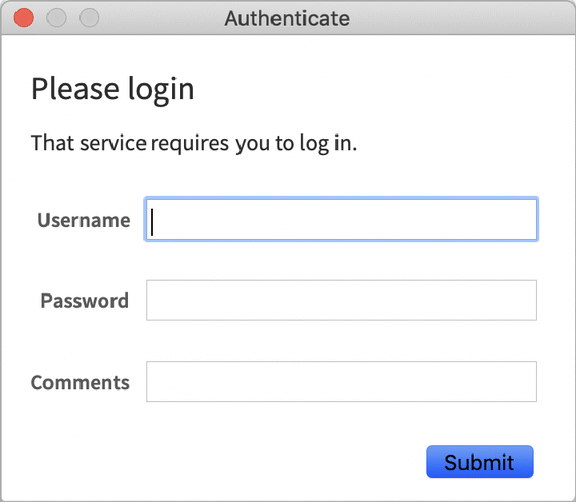
- AppearanceRulesを使って,タイトルや説明的なテキストを含むダイアログの全体的な外観を指定することができる.
- デフォルトで,AuthenticationDialogはメインの表示スクリーンの真ん中にダイアログを置く.これは,WindowMarginsを明示的に設定するとオーバーライドされる.
例題
すべて開く すべて閉じる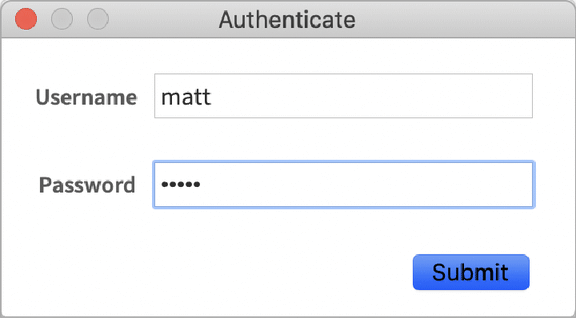
スコープ (7)
結果のAssociationを処理する関数を指定する:
カスタムのキー名を,任意の初期値とマスキングを指定して使う:
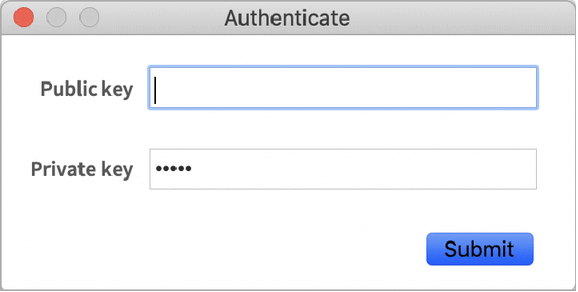
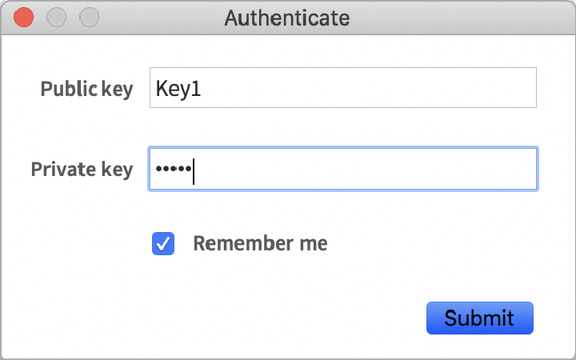
SystemCredentialKey"name"を使ってセッション間でダイアログフィールドを安全に保存する.データは与えられた名前で保存される:
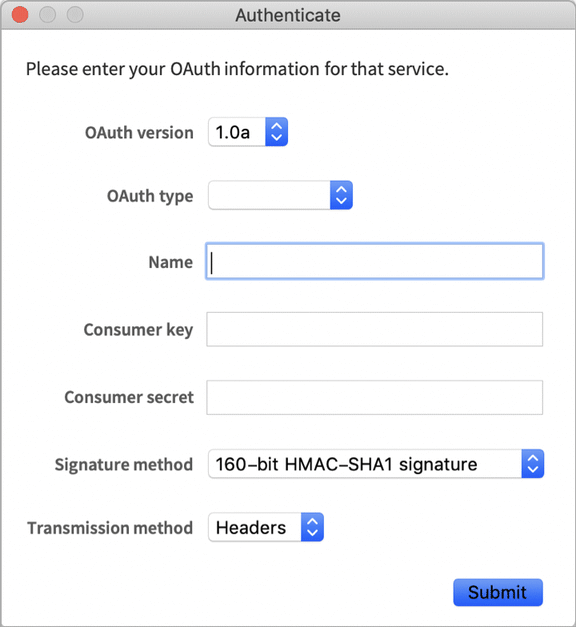
他のタイプのコントロールや任意のフィールド等にFormObjectを使う:
スタンドアロンのWolfram言語カーネルでAuthenticationDialogを使う:
$ ./WolframKernel
Wolfram 14.3.0 Kernel for Mac OS X x86 (64-bit)
Copyright 1988-2025 Wolfram Research, Inc.

In[1]:= AuthenticationDialog[]
Username: matt
Password: *****

Out[1]= <|Username -> matt, Password -> 12345|>
wolframscriptでAuthenticationDialogを使う:
$ wolframscript -code "AuthenticationDialog[]"
Username: matt
Password: *****
<|Username -> matt, Password -> 12345|>

$
一般化と拡張 (1)
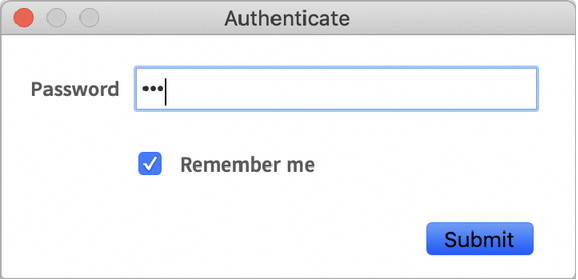
SystemCredentialKeyオプションと一緒に使うと,"UsernamePassword" AuthenticationDialogには追加的な特徴がある.フィールドは事前に提供された各ユーザ名について保存される:
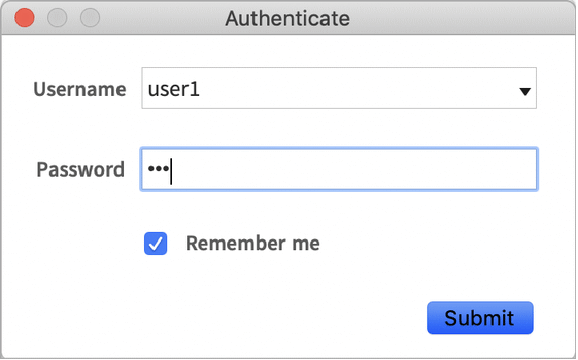
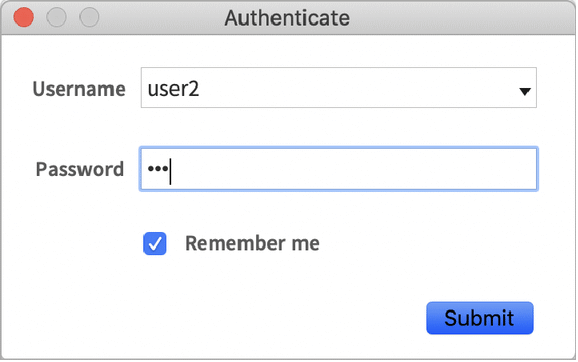
新たなダイアログには最後に使った認証情報が自動的に書き込まれる.パスワードフィールドはドロップダウンメニューから項目を選んだ後で自動的に埋められる:
オプション (7)
SystemCredentialKey (2)
WindowTitle (1)
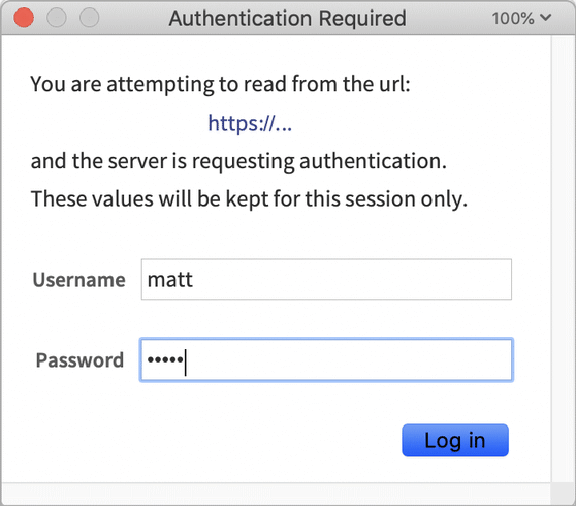
WindowTitleやその他のノートブックオプションを使って,ダイアログノートブックウィンドウの縦横比を調整する:
特性と関係 (2)
AuthenticationDialogをAuthenticationの設定として使って,必要な場合に認証情報を入力するように指示する:
AuthenticationDialogを使って,EncryptやDecrypt等の他の関数のパスワードをリクエストする:
考えられる問題 (5)
プリエンプティブな制御はカーネルの評価キューをブロックできない:

常に,評価の待ち行列からAuthenticationDialogを呼び出す:
AuthenticationDialogは,カーネル評価キューをブロックし,非同時の動的操作がレンダリングされないようにする:
カーネル評価キューがブロックされている間は,同時の動的操作のみがレンダリングされる:
AuthenticationDialogは与えられたドメインのダイアログのキーと一致する任意のストアの認証情報を使う:
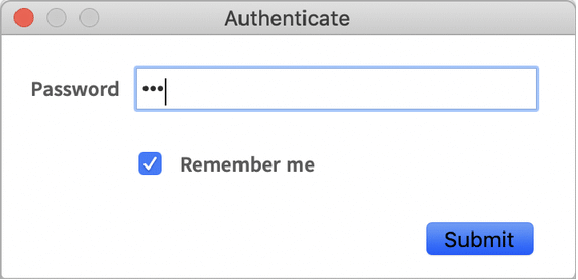
別の無関係の認証ダイアログが同じSystemCredentialKeyを使っている場合は,古い値が上書きされる:
FormObjectを使う任意のAuthenticationDialogについてはSystemCredentialKeyは無視される:
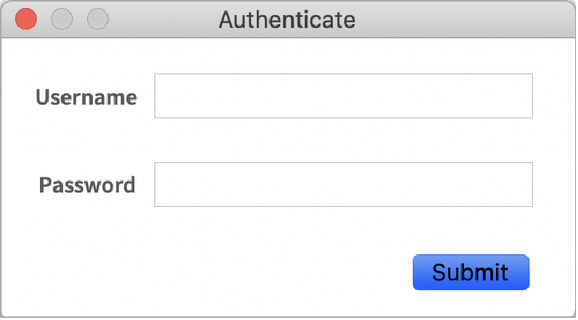
スタンドアロンのWolfram言語カーネルのAuthenticationDialogについてはSystemCredentialKeyは無視される:
> wolfram
Wolfram 14.3.0 Kernel for Microsoft Windows (64-bit)
Copyright 1988-2025 Wolfram Research, Inc.

In[1]:= AuthenticationDialog["Password", SystemCredentialKey->"Domain"]                                        Password: ***                                                                                                                                                                                                                 Out[1]= <|Password -> 123|>
テキスト
Wolfram Research (2018), AuthenticationDialog, Wolfram言語関数, https://reference.wolfram.com/language/ref/AuthenticationDialog.html (2020年に更新).
CMS
Wolfram Language. 2018. "AuthenticationDialog." Wolfram Language & System Documentation Center. Wolfram Research. Last Modified 2020. https://reference.wolfram.com/language/ref/AuthenticationDialog.html.
APA
Wolfram Language. (2018). AuthenticationDialog. Wolfram Language & System Documentation Center. Retrieved from https://reference.wolfram.com/language/ref/AuthenticationDialog.html