Manipulating Notebooks
Like other objects in the Wolfram Language, the cells in a notebook, and in fact the whole notebook itself, are all ultimately represented as Wolfram Language expressions. With the standard notebook front end, you can use the command Show Expression to see the text of the Wolfram Language expression that corresponds to any particular cell.
Show Expression menu item | toggle between displayed form and underlying Wolfram Language expression |
Ctrl+* or Ctrl+8 (between existing cells) | put up a dialog box to allow input of a cell in Wolfram Language expression form |
Handling Cell expressions in the notebook front end.


| Cell[contents,"style"] | a cell with a specific style |
| Cell[contents,"style",options] | a cell with additional options specified |
| Cell[contents,"style1","style2",…,options] | a cell with several styles |
Within a given notebook, there is always a collection of styles that can be used to determine the appearance and behavior of cells. Typically the styles are named so as to reflect what role cells which have them will play in the notebook.
| "Title" | the title of the notebook |
| "Section" | a section heading |
| "Subsection" | a subsection heading |
| "Text" | ordinary text |
| "Input" | Wolfram Language input |
| "Output" | Wolfram Language output |
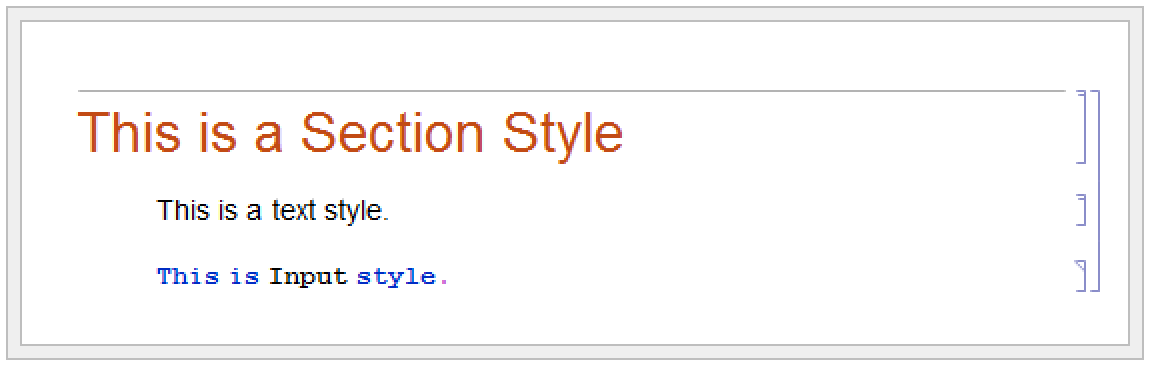
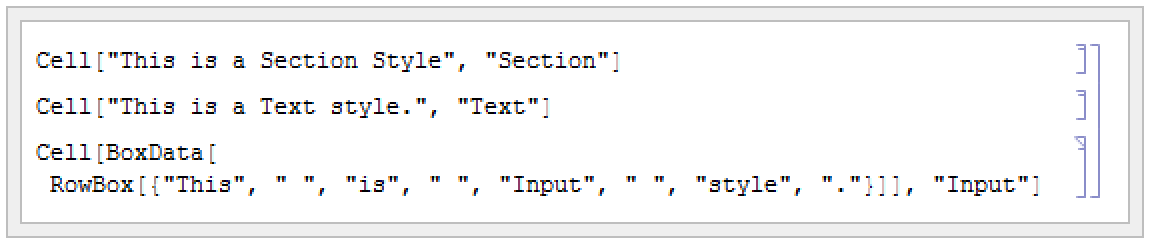
A particular style such as "Section" or "Text" defines various settings for the options associated with a cell. You can override these settings by explicitly setting options within a specific cell.
Here is the expression for a cell in which options are set to use a gray background and to put a frame around the cell.


option | default value | |
| CellFrame | False | whether to draw a frame around the cell |
| Background | Automatic | what color to draw the background for the cell |
| Editable | True | whether to allow the contents of the cell to be edited |
| TextAlignment | Left | how to align text in the cell |
| FontSize | 12 | the point size of the font for text |
| CellTags | {} | tags to be associated with the cell |
The standard notebook front end for the Wolfram System provides several ways to change the options of a cell. In simple cases, such as changing the size or color of text, there will often be a specific menu item for the purpose. But in general you can use the Option Inspector that is built into the front end. This is typically accessed using the Option Inspector menu item in the Format menu.
■ Change settings for specific options with menus. |
■ Look at and modify all options with the Option Inspector. |
■ Edit the textual form of the expression corresponding to the cell. |
■ Change the settings for all cells with a particular style. |
Sometimes you will want just to change the options associated with a specific cell. But often you may want to change the options associated with all cells in your notebook that have a particular style. You can do this by using the Edit Stylesheet command in the front end to create a custom stylesheet associated with your notebook. Then use the controls in the stylesheet to create a cell corresponding to the style you want to change and modify the options for that cell.
| CellPrint[Cell[…]] | insert a cell into your currently selected notebook |
| CellPrint[{Cell[…],Cell[…],…}] | insert a sequence of cells into your currently selected notebook |
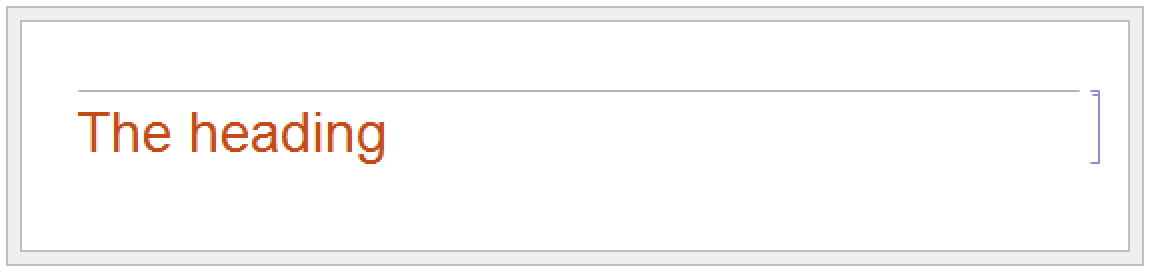
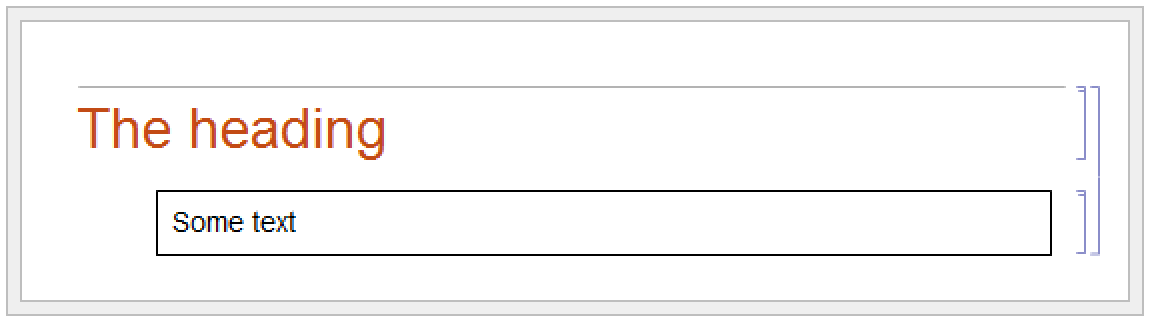
CellPrint allows you to take a raw Cell expression and insert it into your current notebook. The cell created by CellPrint is grouped with the input and will be overwritten if the input is reevaluated.
| Notebook[{cell1,cell2,…}] | a notebook containing a sequence of cells |
| Notebook[cells,options] | a notebook with options specified |
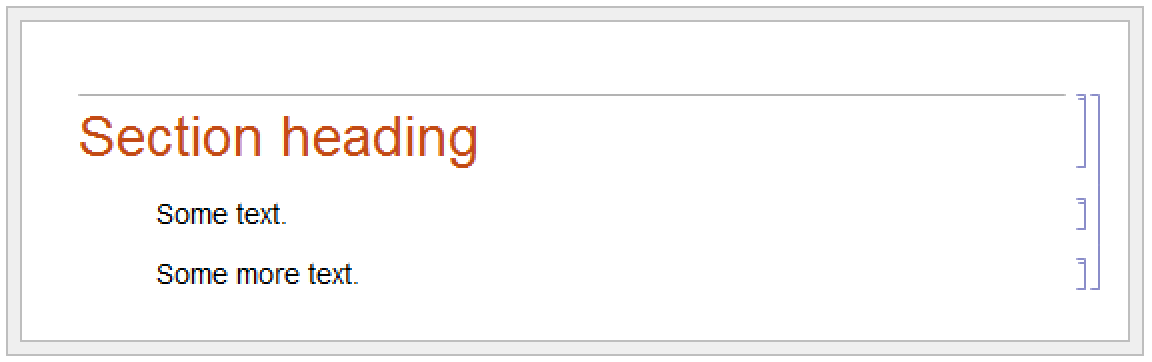
Notebook[{
    Cell["Section heading", "Section"],
    Cell["Some text.", "Text"],
    Cell["More text.", "Text"]}]
Just like individual cells, notebooks in the Wolfram System can also have options. You can look at and modify these options using the Option Inspector in the standard notebook front end.
option | default value | |
| WindowSize | {nx,ny} | the size in pixels of the window used to display the notebook |
| WindowFloating | False | whether the window should float on top of others |
| WindowToolbars | {} | what toolbars to include at the top of the window |
| ShowPageBreaks | False | whether to show where page breaks would occur if the notebook were printed |
| CellGrouping | Automatic | how to group cells in the notebook |
| Evaluator | "Local" | what kernel should be used to do evaluations in the notebook |
| Saveable | True | whether a notebook can be saved |
A notebook with the option setting Saveable->False can always be saved using the Save As menu item, but does not respond to Save and does not prompt for saving when it is closed.
In addition to notebook options, you can also set any cell option at the notebook level. Doing this tells the Wolfram System to use that option setting as the default for all the cells in the notebook. You can override the default by explicitly setting the options within a particular cell or by using a named style which explicitly overrides the option.
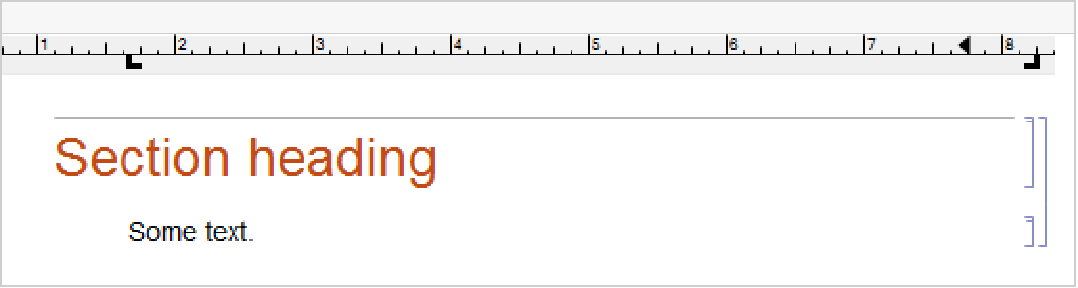
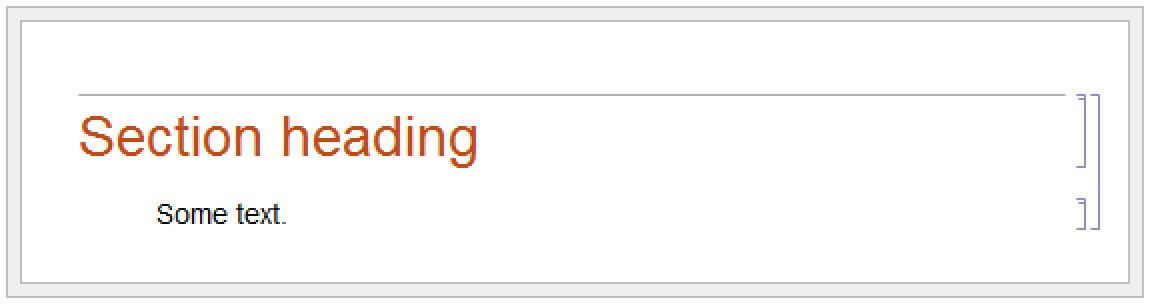
Here is the expression corresponding to a notebook with a ruler displayed in the toolbar at the top of the window.
Notebook[{
    Cell["Section heading", "Section"],
    Cell["Some text.", "Text"]},
       WindowToolbars->{"RulerBar"}]
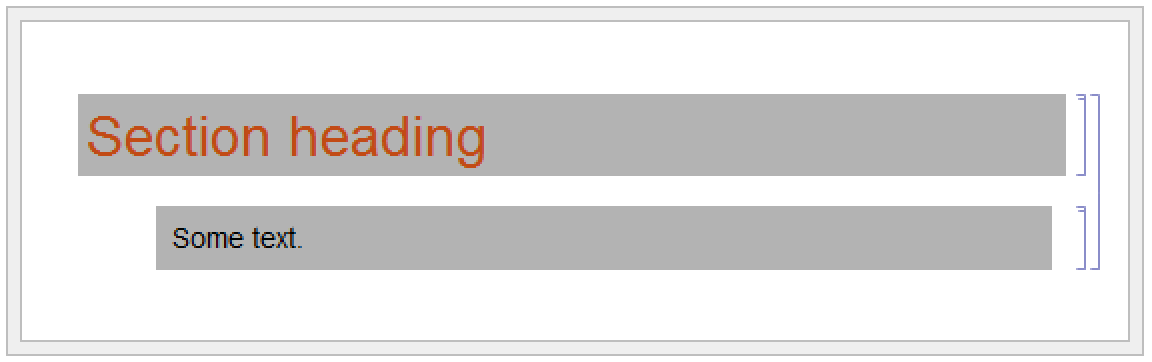
Notebook[{
    Cell["Section heading", "Section"],
    Cell["Some text.", "Text"]},
       Background->GrayLevel[.7]]
If you go outside of the Wolfram System and look at the raw text of the file that corresponds to a Wolfram System notebook, you will find that what is in the file is just the textual form of the expression that represents the notebook. One way to create a Wolfram System notebook is therefore to construct an appropriate expression and put it in a file.
In notebook files that are written out by the Wolfram System, some additional information is typically included to make it faster for the Wolfram System to read the file in again. The information is enclosed in Wolfram Language comments indicated by (*…*) so that it does not affect the actual expression stored in the file.
| NotebookOpen["file.nb"] | open a notebook file in the front end |
| NotebookPut[expr] | create a notebook corresponding to expr in the front end |
| NotebookGet[obj] | get the expression corresponding to an open notebook in the front end |
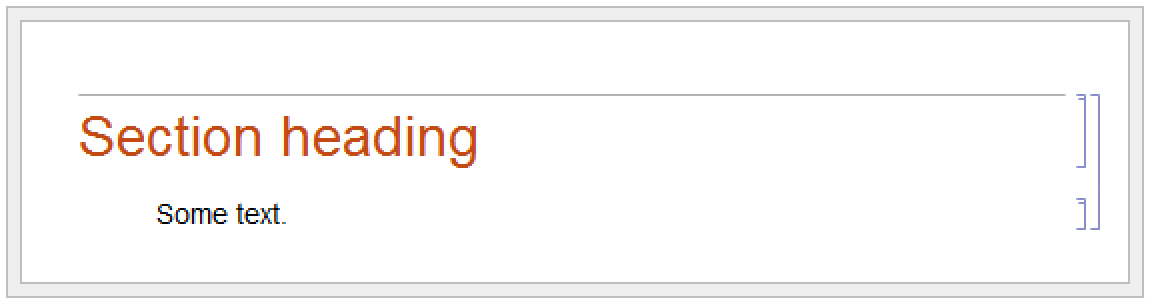
Once you have set up a notebook in the front end using NotebookOpen, you can then manipulate the notebook interactively just as you would any other notebook. But in order to use NotebookOpen, you have to explicitly have a notebook expression in a file. With NotebookPut, however, you can take a notebook expression that you have created in the kernel, and immediately display it as a notebook in the front end.
You can use NotebookGet to get the notebook corresponding to a particular NotebookObject back into the kernel:
If you want to do simple operations on Wolfram System notebooks, then you will usually find it convenient just to use the interactive capabilities of the standard Wolfram System front end. But if you want to do more complicated and systematic operations, then you will often find it better to use the kernel.
| Notebooks[] | a list of all your open notebooks |
| Notebooks["name"] | a list of all open notebooks with the specified name |
| InputNotebook[] | the notebook into which typed input will go |
| EvaluationNotebook[] | the notebook in which this function is being evaluated |
| ButtonNotebook[] |
the notebook containing the button (if any) which initiated this evaluation
|
Within the Wolfram Language kernel, notebooks that you have open in the front end are referred to by notebook objects of the form NotebookObject[fe,id]. The first argument of NotebookObject specifies the FrontEndObject for the front end in which the notebook resides, while the second argument gives a unique serial number for the notebook.

| NotebookGet[obj] | get the notebook expression corresponding to the notebook object obj |
| NotebookPut[expr,obj] | replaces the notebook represented by the notebook object obj with one corresponding to expr |
| NotebookPut[expr] | creates a notebook corresponding to expr and makes it the currently selected notebook in the front end |
If you want to do extensive manipulations on a particular notebook you will usually find it convenient to use NotebookGet to get the whole notebook into the kernel as a single expression. But if instead you want to do a sequence of small operations on a notebook, then it is often better to leave the notebook in the front end, and then to send specific commands from the kernel to the front end to tell it what operations to do.
The Wolfram Language is set up so that anything you can do interactively to a notebook in the front end you can also do by sending appropriate commands to the front end from the kernel.
| Options[obj] | give a list of all options set for the notebook corresponding to notebook object obj |
| Options[obj,option] | give the option setting |
| AbsoluteOptions[obj,option] | give the option setting with absolute option values even when the actual setting is Automatic |
| CurrentValue[obj,option] | give and set the value of option |
| SetOptions[obj,option->value] | set the value of an option |
This gives the setting of the WindowSize option for your currently selected notebook:
This changes the option using CurrentValue with a simple assignment:
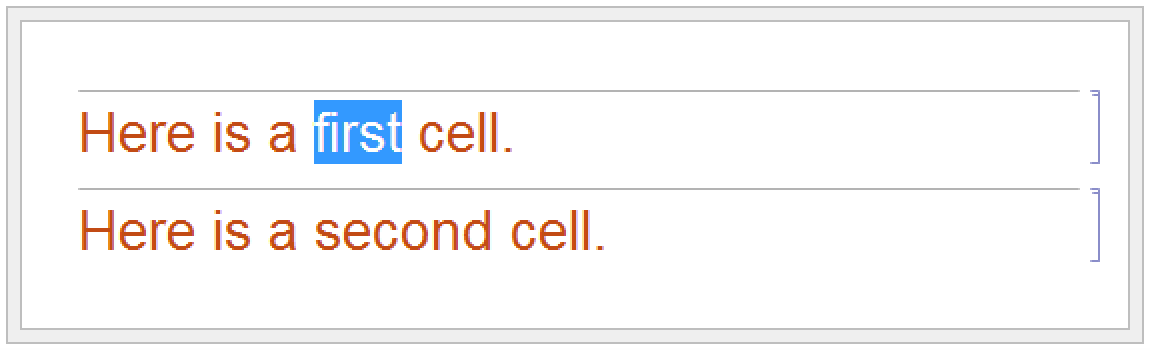
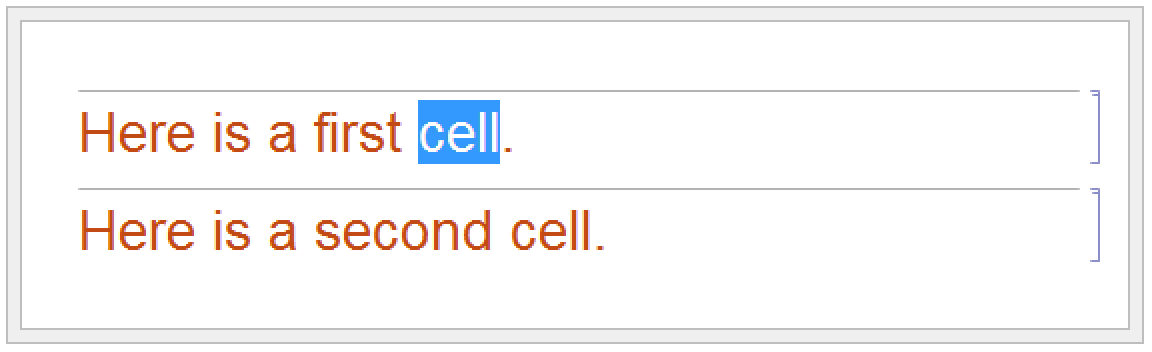
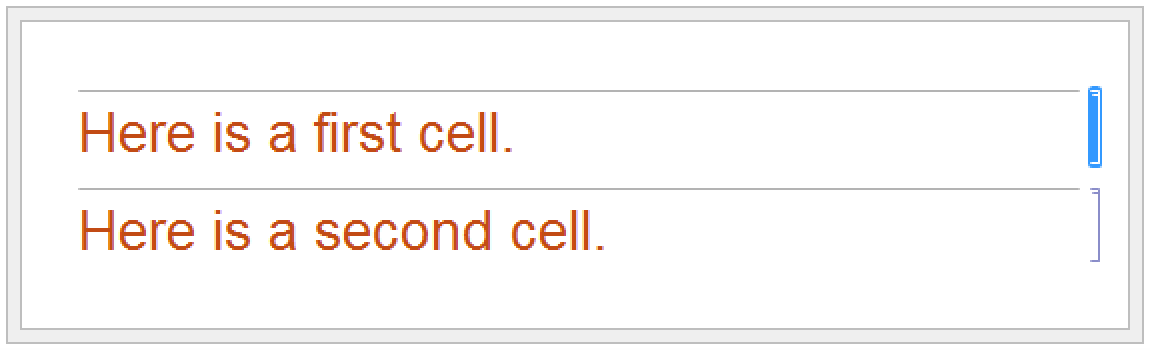
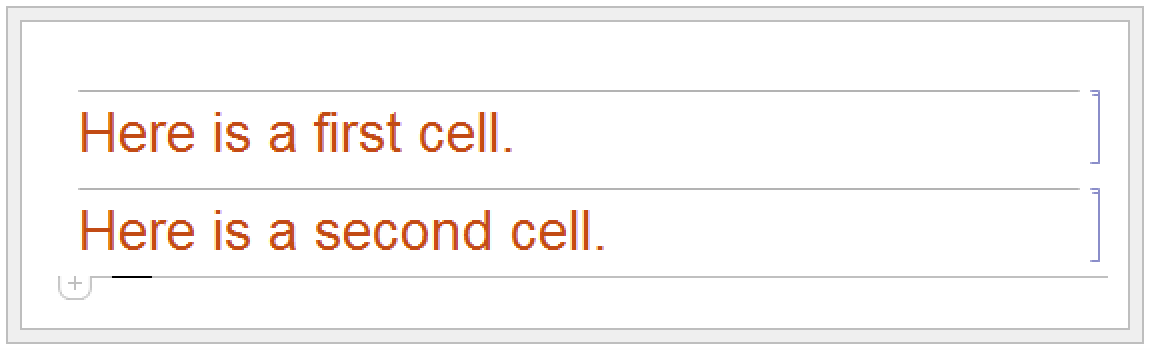
Within any open notebook, the front end always maintains a current selection. The selection can consist for example of a region of text within a cell or of a complete cell. Usually the selection is indicated on the screen by some form of highlighting. The selection can also be between two characters of text, or between two cells, in which case it is usually indicated on the screen by a vertical or horizontal insertion bar.
| SelectionMove[obj,Next,unit] | move the current selection to make it be the next unit of the specified type |
| SelectionMove[obj,Previous,unit] | move to the previous unit |
| SelectionMove[obj,After,unit] | move to just after the end of the present unit of the specified type |
| SelectionMove[obj,Before,unit] | move to just before the beginning of the present unit |
| SelectionMove[obj,All,unit] | extend the current selection to cover the whole unit of the specified type |
| Character | individual character |
| Word | word or other token |
| Expression | complete subexpression |
| TextLine | line of text |
| TextParagraph | paragraph of text |
| GraphicsContents | the contents of the graphic |
| Graphics | graphic |
| CellContents | the contents of the cell |
| Cell | complete cell |
| CellGroup | cell group |
| EvaluationCell | cell associated with the current evaluation |
| ButtonCell | cell associated with any button that initiated the evaluation |
| GeneratedCell | cell generated by the current evaluation |
| Notebook | complete notebook |
| NotebookFind[obj,data] | move the current selection to the next occurrence of the specified data in a notebook |
| NotebookFind[obj,data,Previous] | move to the previous occurrence |
| NotebookFind[obj,data,All] | make the current selection cover all occurrences |
| NotebookFind[obj,data,dir,elems] |
search in the specified elements of each cell, going in direction
dir
|
| NotebookFind[obj,"text",IgnoreCase->True] | |
do not distinguish uppercase and lowercase letters in text | |
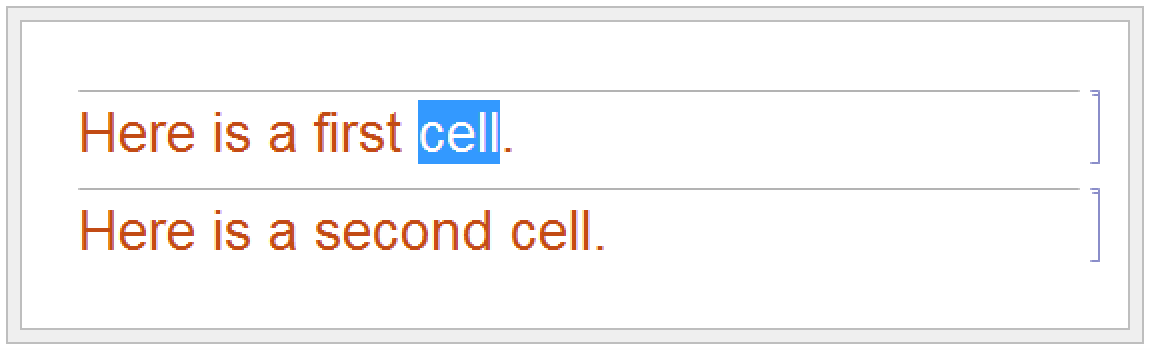
The letter  does not appear in the current notebook, so $Failed is returned, and the selection is not moved:
does not appear in the current notebook, so $Failed is returned, and the selection is not moved: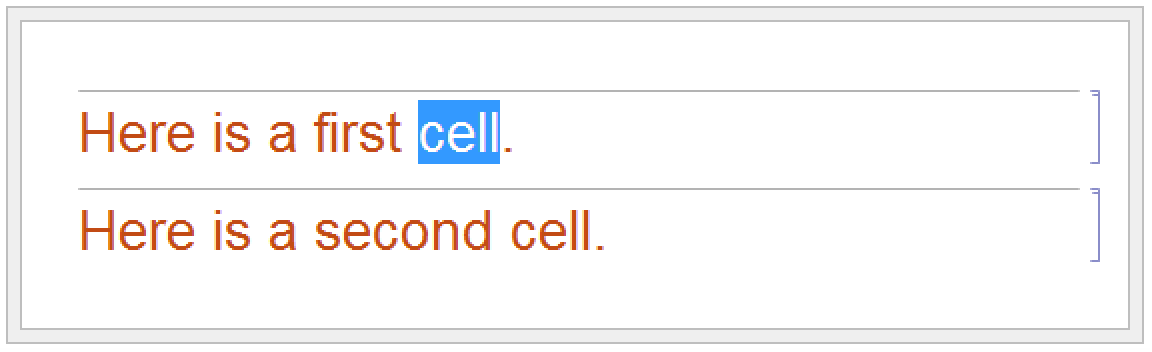
| CellContents | contents of each cell |
| CellStyle | the name of the style for each cell |
| CellLabel | the label for each cell |
| CellTags | tags associated with each cell |
| {elem1,elem2,…} | several kinds of elements |
Possible elements of cells to be searched by NotebookFind.
In setting up large notebooks, it is often convenient to insert tags which are not usually displayed, but which mark particular cells in such a way that they can be found using NotebookFind. You can set up tags for cells either interactively in the front end, or by explicitly setting the CellTags option for a cell.
| NotebookLocate["tag"] | locate and select cells with the specified tag in the current notebook |
| NotebookLocate[{"file","tag"}] | open another notebook if necessary |
NotebookLocate is typically the underlying function that the Wolfram Language calls when you follow a hyperlink in a notebook. The Insert ▶ Hyperlink menu item sets up the appropriate NotebookLocate as part of the script for a particular hyperlink button.
| NotebookWrite[obj,data] | write data into a notebook at the current selection |
| NotebookApply[obj,data] | write data into a notebook, inserting the current selection in place of the first that appears in data |
| NotebookDelete[obj] | delete whatever is currently selected in a notebook |
| NotebookRead[obj] | get the expression that corresponds to the current selection in a notebook |
NotebookWrite[obj,data] is similar to a Paste operation in the front end: it replaces the current selection in your notebook by data. If the current selection is a cell NotebookWrite[obj,data] will replace the cell with data. If the current selection lies between two cells, however, then NotebookWrite[obj,data] will create an appropriate new cell or cells.
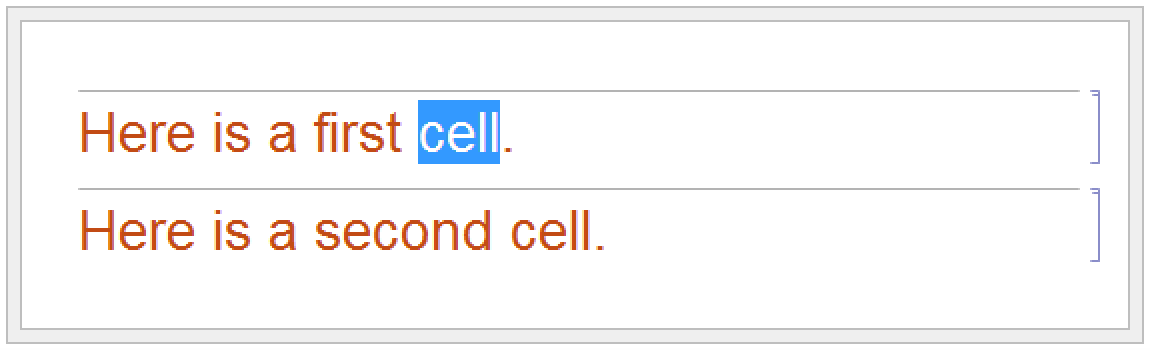
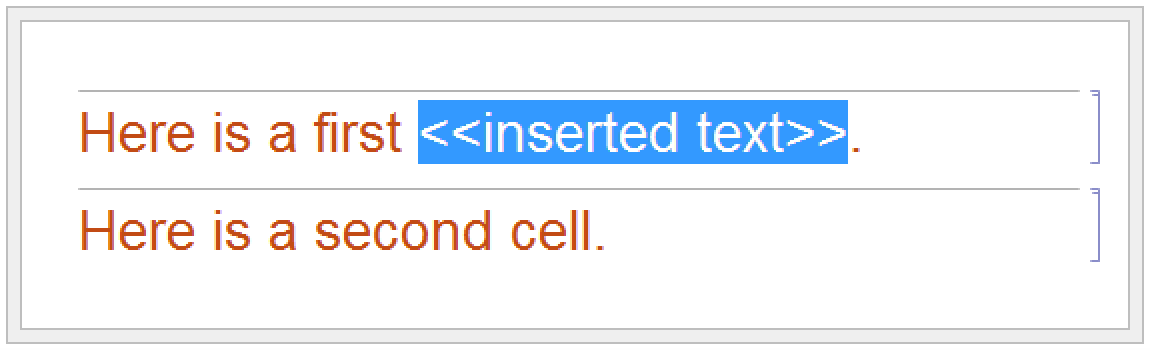
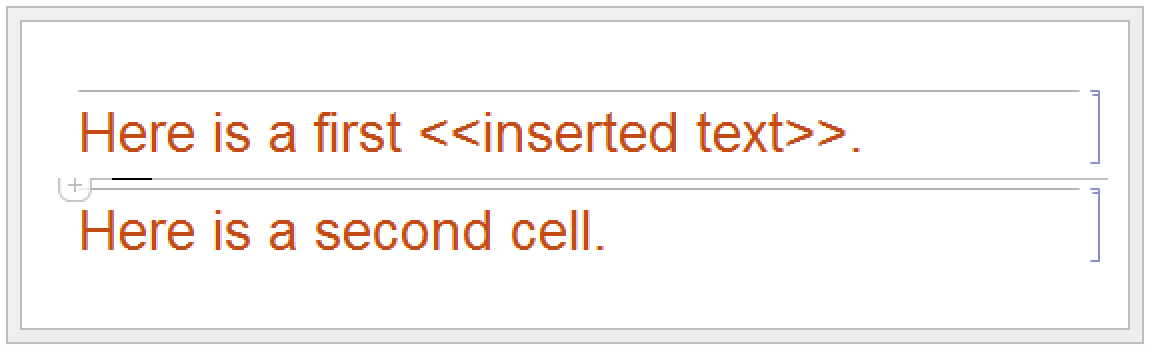
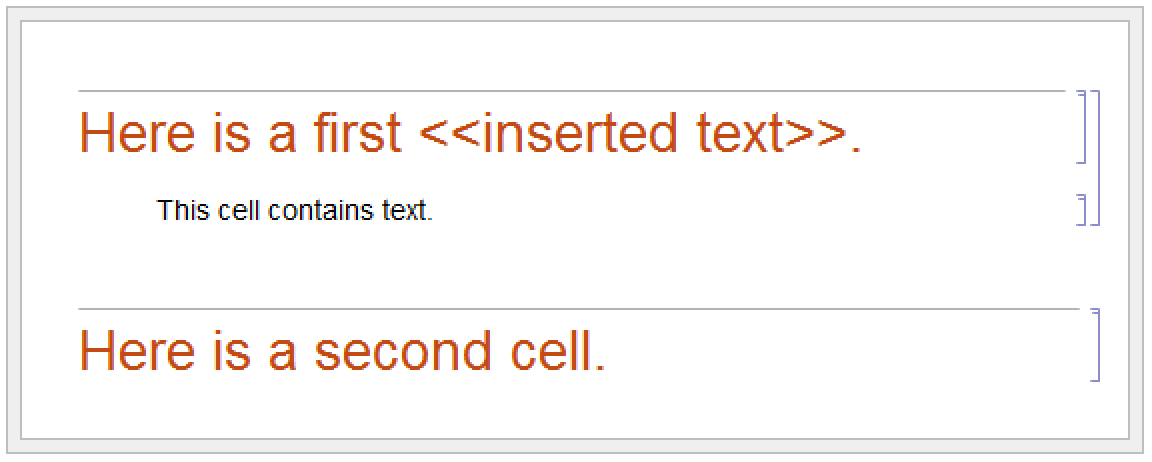
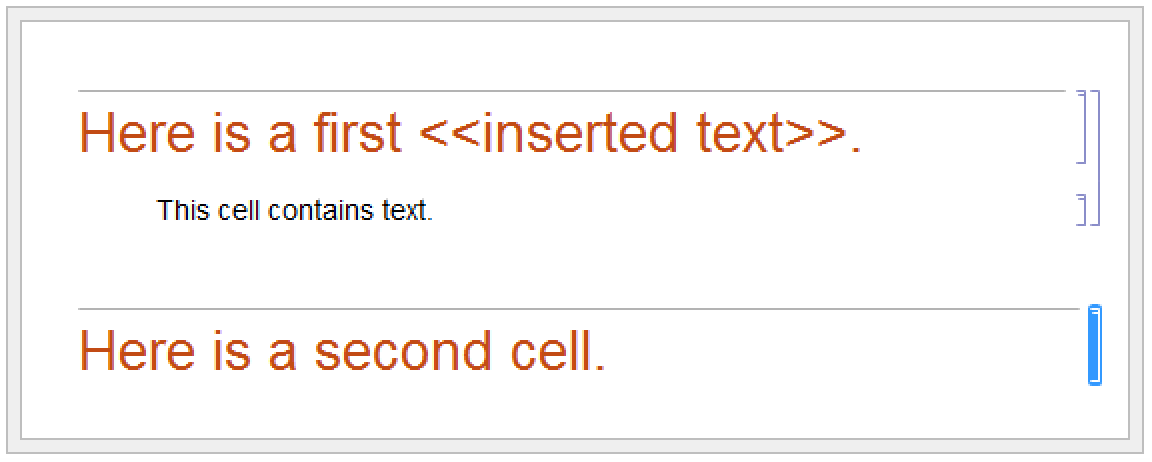
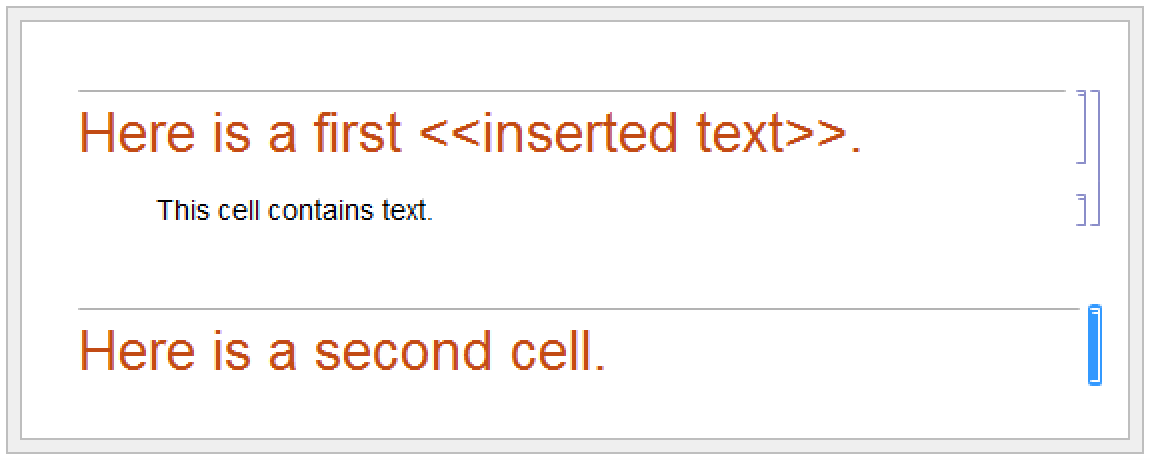
NotebookWrite[obj,data] just discards the current selection and replaces it with data. But particularly if you are setting up palettes, it is often convenient first to modify data by inserting the current selection somewhere inside it. You can do this using selection placeholders and NotebookApply. The first time the character "", entered as ∖[SelectionPlaceholder] or EscsplEsc, appears anywhere in data, NotebookApply will replace this character by the current selection.


| SelectionEvaluate[obj] | evaluate the current selection in place |
| SelectionCreateCell[obj] | create a new cell containing just the current selection |
| SelectionEvaluateCreateCell[obj] | evaluate the current selection and create a new cell for the result |
| SelectionAnimate[obj] | animate graphics in the current selection |
| SelectionAnimate[obj,t] | animate graphics for  seconds seconds |


SelectionEvaluate allows you to take material from a notebook and send it through the kernel for evaluation. On its own, however, SelectionEvaluate always overwrites the material you took. But by using functions like SelectionCreateCell you can maintain a record of the sequence of forms that are generated—just like in a standard Wolfram System session.

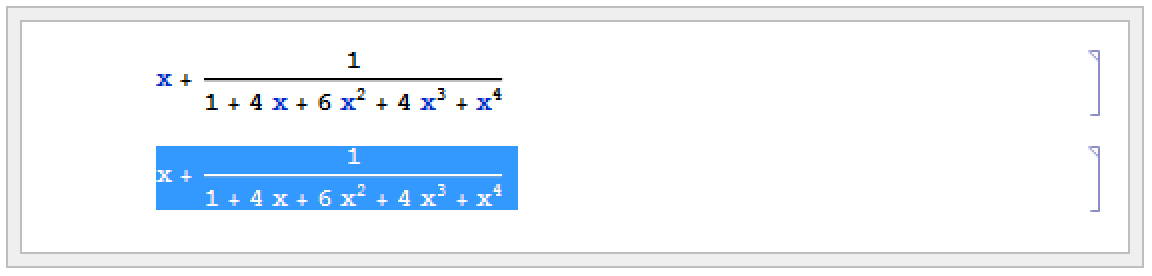
This wraps Factor around the contents of the current cell:
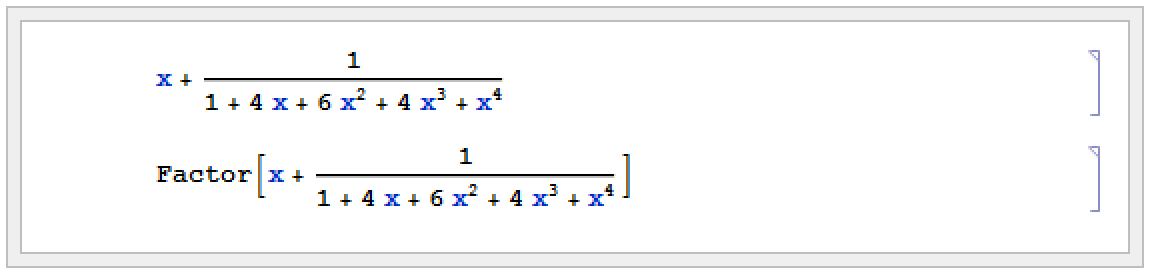
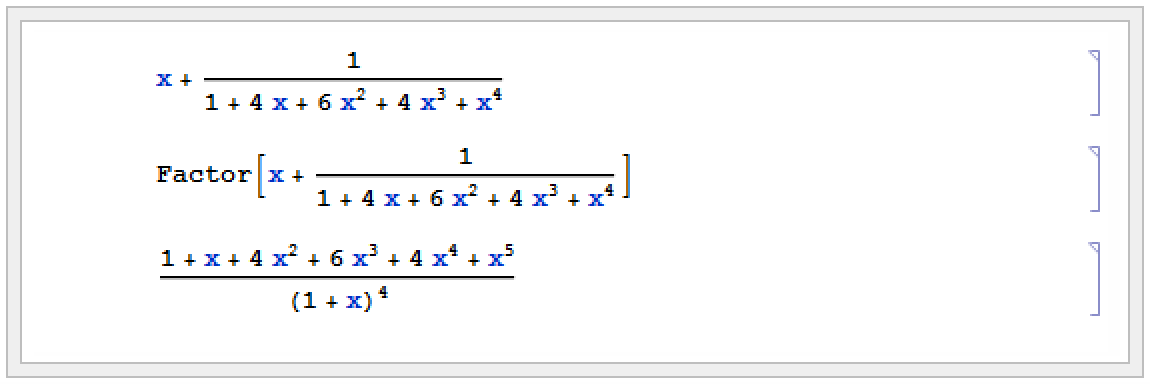
Functions like NotebookWrite and SelectionEvaluate by default leave the current selection just after whatever material they insert into your notebook. You can then always move the selection by explicitly using SelectionMove. But functions like NotebookWrite and SelectionEvaluate can also take an additional argument which specifies where the current selection should be left after they do their work.
| NotebookWrite[obj,data,sel] | write data into a notebook, leaving the current selection as specified by sel |
| NotebookApply[obj,data,sel] | write data replacing by the previous current selection, then leaving the current selection as specified by sel |
| SelectionEvaluate[obj,sel] |
evaluate the current selection, making the new current selection be as specified by
sel
|
| SelectionCreateCell[obj,sel] |
create a new cell containing just the current selection, and make the new current selection be as specified by
sel
|
| SelectionEvaluateCreateCell[obj,sel] |
evaluate the current selection, make a new cell for the result, and make the new current selection be as specified by
sel
|
| After |
immediately after whatever material is inserted (default)
|
| Before | immediately before whatever material is inserted |
| All | the inserted material itself |
| Placeholder | the first in the inserted material |
| None | leave the current selection unchanged |


This evaluates the current selection, creating a new cell for the result, and making the current selection be the whole of the result:

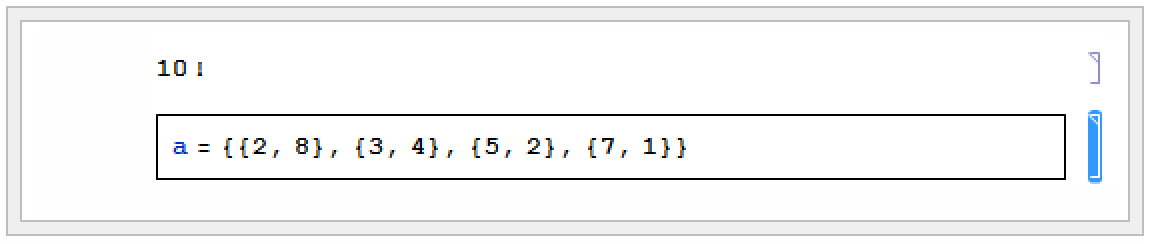
This wraps FactorInteger around the current selection:



| Options[obj,option] | find the value of an option for a complete notebook |
| Options[NotebookSelection[obj],option] | |
find the value for the current selection | |
| SetOptions[obj,option->value] | set the value of an option for a complete notebook |
| SetOptions[NotebookSelection[obj],option->value] | |
set the value for the current selection | |

| CreateWindow[] | create a new notebook |
| CreateWindow[options] | create a notebook with specified options |
| NotebookOpen["name"] | open an existing notebook |
| NotebookOpen["name",options] | open a notebook with specified notebook options |
| SetSelectedNotebook[obj] | make the specified notebook the selected one |
| NotebookPrint[obj] | send a notebook to your printer |
| NotebookPrint[obj,"file"] | send a PostScript version of a notebook to a file |
| NotebookPrint[obj,"!command"] | send a PostScript version of a notebook to an external command |
| NotebookSave[obj] | save the current version of a notebook in a file |
| NotebookSave[obj,"file"] | save the notebook in a file with the specified name |
| NotebookClose[obj] | close a notebook |
If you call CreateWindow[] a new empty notebook will appear on your screen.
By executing commands like SetSelectedNotebook and NotebookOpen, you tell the Wolfram System front end to change the windows you see. Sometimes you may want to manipulate a notebook without ever having it displayed on the screen. You can do this by using the option setting Visible->False in NotebookOpen or CreateWindow.
| $FrontEnd | the front end currently in use |
| Options[$FrontEnd,option] | the setting for a global option in the front end |
| AbsoluteOptions[$FrontEnd,option] | the absolute setting for an option |
| SetOptions[$FrontEnd,option->value] | reset an option in the front end |
| CurrentValue[$FrontEnd, option] |
return option value, and also allow setting of option when used as the left-hand side of an assignment
|
Just like cells and notebooks, the complete Wolfram System front end has various options, which you can look at and manipulate from the kernel.
option | default value | |
| NotebookBrowseDirectory |
(system dependent)
| the default directory for opening and saving notebook files |
| NotebookPath |
(system dependent)
| the path to search when trying to open notebooks |
| Language | "English" | default language for text |
| MessageOptions |
(list of settings)
| how to handle various help and warning messages |
By using NotebookWrite you can effectively input to the front end any ordinary text that you can enter on the keyboard. FrontEndTokenExecute allows you to send from the kernel any command that the front end can execute. These commands include both menu items and control sequences.
| FrontEndTokenExecute["name"] | execute a named command in the front end |
| "Indent" | indent all selected lines by one tab |
| "NotebookStatisticsDialog" | display statistics about the current notebook |
| "OpenCloseGroup" | toggle a cell group between open and closed |
| "CellSplit" | split a cell in two at the current insertion point |
| "DuplicatePreviousInput" | create a new cell which is a duplicate of the nearest input cell above |
| "FindDialog" | bring up the Find dialog |
| "ColorSelectorDialog" | bring up the Color Selector dialog |
| "GraphicsAlign" | align selected graphics |
| "CompleteSelection" | complete the command name that is the current selection |
A few named commands that can be given to the front end. These commands usually correspond to menu items.
Front end tokens let you perform kernel commands that would normally be done using the menus. Front end tokens are particularly convenient for writing programs to manipulate notebooks.
FrontEndToken is a kernel command that identifies its argument as a front end token. FrontEndExecute is a kernel command that sends its argument to the front end for execution. For example, the following command creates a new notebook.
FrontEndExecute can take a list as its argument, allowing you to execute multiple tokens in a single evaluation. When you evaluate the following command, the front end creates a new notebook and then pastes the contents of the clipboard into that notebook.
Simple and Compound Front End Tokens
Front end tokens are divided into two classes: simple tokens and compound tokens that take parameters.
Simple Tokens
For simple tokens, FrontEndToken can have one or two arguments.
If FrontEndToken has one argument, the token operates on the input notebook. The following examples use the front end token "Save". The result is the same as using File ▶ Save.
With two arguments, the arguments of FrontEndToken must be a NotebookObject and a front end token. For example, to save the notebook containing the current evaluation, the first argument of FrontEndToken is the notebook object EvaluationNotebook , and the second argument is the front end token "Save".
You can execute a simple, one-argument front end token with the command FrontEndTokenExecute[token]. This is equivalent to FrontEndExecute[FrontEndToken[token]].
Compound Tokens
Compound tokens have a token parameter that controls some aspect of their behavior. For a compound token, the three arguments of FrontEndToken must be a NotebookObject, the front end token, and the selected token parameter.
When you execute a command like NotebookWrite[obj,data] the actual operation of inserting data into your notebook is performed in the front end. Normally, however, the kernel is needed in order to evaluate the original command, and to construct the appropriate request to send to the front end. But it turns out that the front end is set up to execute a limited collection of commands directly, without ever involving the kernel.
| NotebookWrite[obj,data] | version of NotebookWrite to be executed in the kernel |
| FrontEnd`NotebookWrite[obj,data] | version of NotebookWrite to be executed directly in the front end |
The basic way that the Wolfram Language distinguishes between commands to be executed in the kernel and to be executed directly in the front end is by using contexts. The kernel commands are in the usual System` context, but the front end commands are in the FrontEnd` context.
| FrontEndExecute[expr] | send expr to be executed in the front end |




If you write sophisticated programs for manipulating notebooks, then you will have no choice but to execute these programs primarily in the kernel. But for the kinds of operations typically performed by simple buttons, you may find that it is possible to execute all the commands you need directly in the front end—without the kernel even needing to be running.
| Cell[contents,"style"] | a cell in a particular style |
| Cell[contents,"style1","style2",…] | a cell with multiple styles |
| Cell[contents,"style",options] | a cell with additional options set |

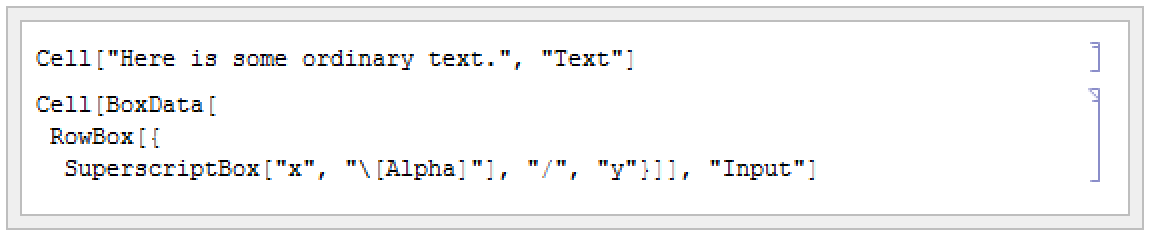

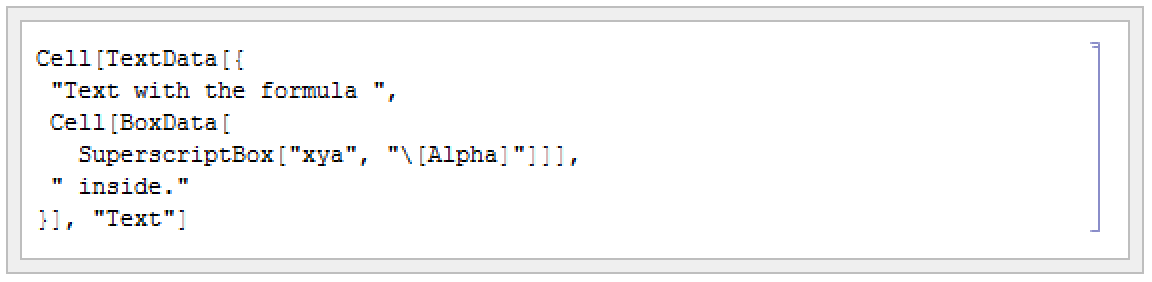
This is the expression corresponding to the cell. The Wolfram System input is in a cell embedded inside the text.
| "text" | plain text |
| TextData[{text1,text2,…}] |
text potentially in different styles, or containing cells
|
| BoxData[boxes] | formatted Wolfram System expressions |
| GraphicsData["type",data] | graphics or sounds |
| OutputFormData["itext","otext"] | text as generated by InputForm and OutputForm |
| RawData["data"] | unformatted expressions as obtained using Show Expression |
| CellGroupData[{cell1,cell2,…},Open] | an open group of cells |
| CellGroupData[{cell1,cell2,…},Closed] | a closed group of cells |
| StyleData["style"] | a style definition cell |
Global | the complete front end and all open notebooks |
the current notebook | |
the style of the current cell | |
the specific current cell | |
Selection | a selection within a cell |
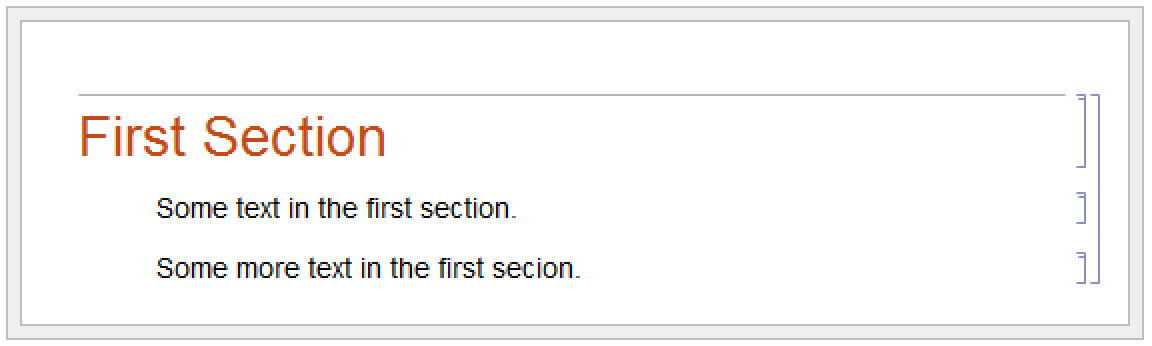
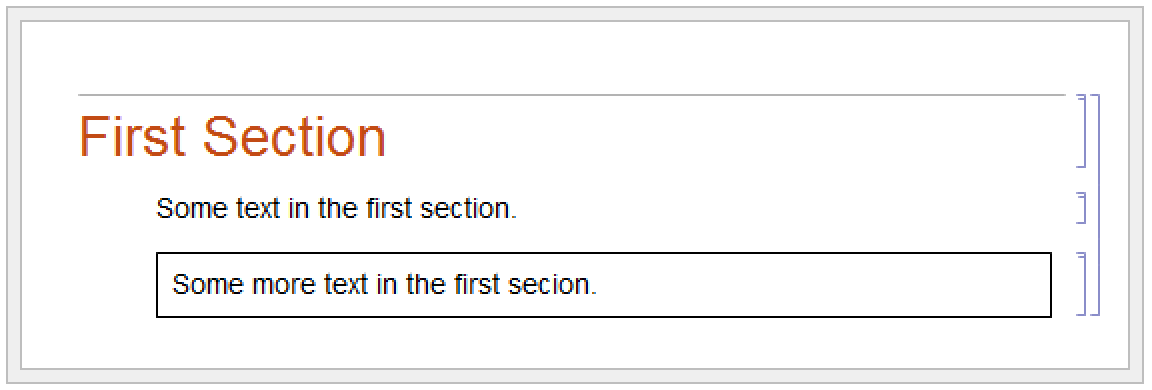
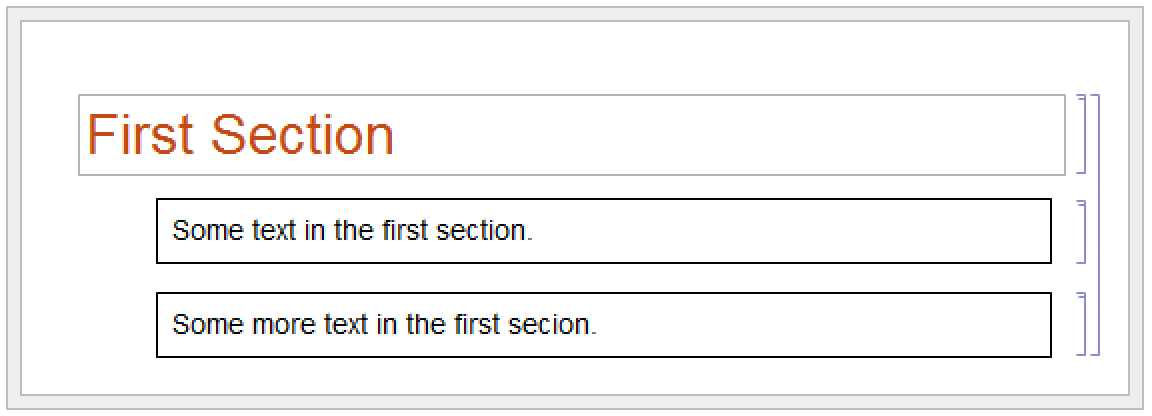
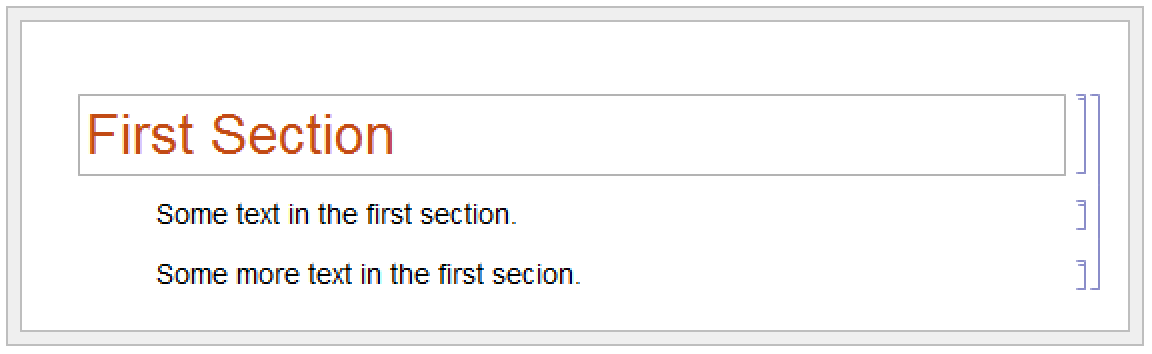
In the standard notebook front end, you can check and set options at any level by using the Option Inspector menu item. If you do not set an option at a particular level, then its value will always be inherited from the level above. Thus, for example, if a particular cell does not set the CellFrame option, then the value used will be inherited from its setting for the style of the cell or for the whole notebook that contains the cell.
As a result, if you set CellFrame->True at the level of a whole notebook, then all the cells in the notebook will have frames drawn around them—unless the style of a particular cell, or the cell itself, explicitly overrides this setting.
■ Choose the basic default styles for a notebook |
■ Choose the styles for screen and printing style environments |
■ Edit specific styles for the notebook |
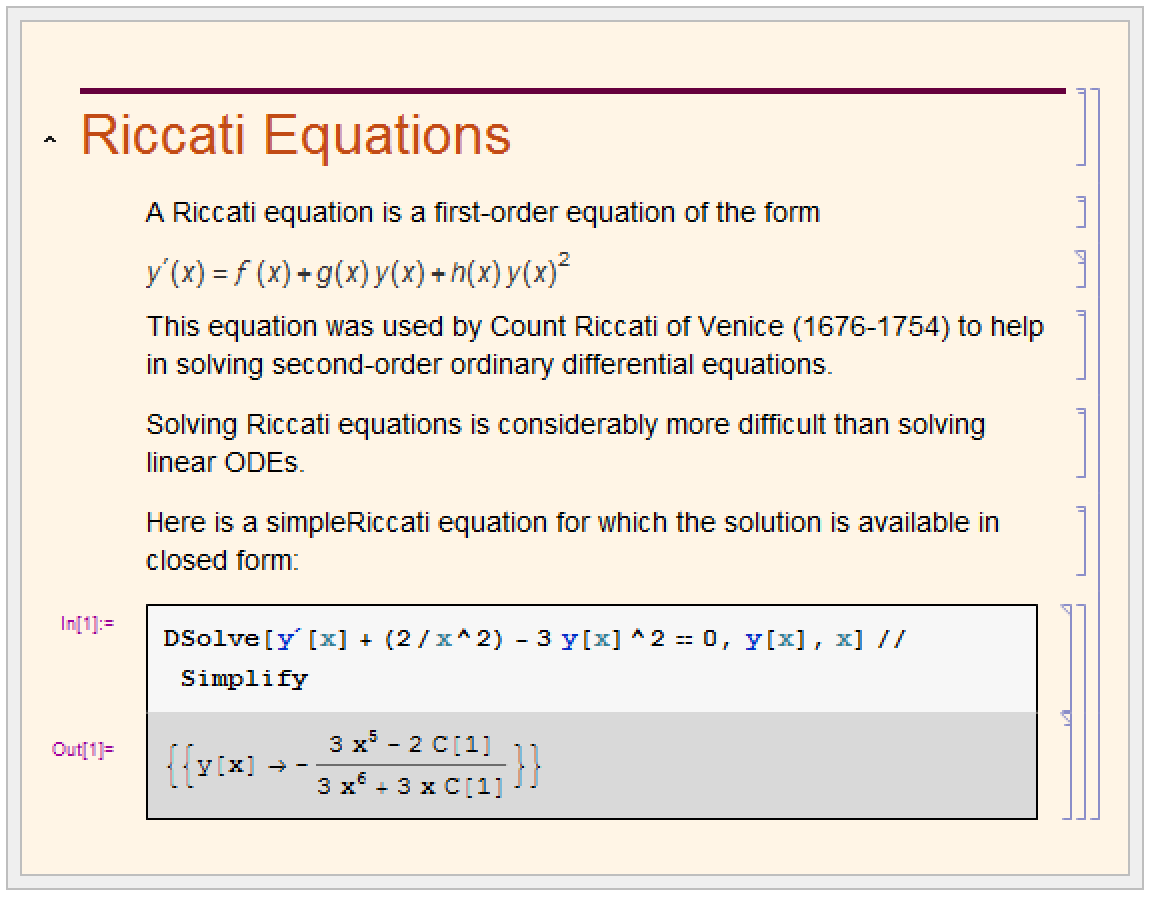
Depending on what you intend to use your Wolfram System notebook for, you may want to choose different basic default styles for the notebook. In the standard notebook front end, you can do this by selecting a different stylesheet in the Stylesheet menu or by using the Edit Stylesheet menu item.
| "StandardReport" | styles for everyday work and for reports |
| "NaturalColor" | styles for colorful presentation of everyday work |
| "Outline" | styles for outlining ideas |
| "Notepad" | styles for working with plain text documents |
With each choice of basic default styles, the styles that are provided will change. Thus, for example, the Notepad stylesheet provides a limited number of styles since it is designed to work with plain text documents.
option | default value | |
| ScreenStyleEnvironment | "Working" | the style environment to use for display on the screen |
| PrintingStyleEnvironment | "Printout" | the style environment to use for printed output |
Within a particular set of basic default styles, the Wolfram System allows for two different style environments: one for display on the screen, and another for output to a printer. The existence of separate screen and printing style environments allows you to set up styles which are separately optimized both for low‐resolution display on a screen, and high‐resolution printing.
| "Working" | onscreen working environment |
| "Presentation" | onscreen environment for presentations |
| "Condensed" | onscreen environment for maximum display density |
| "Slideshow" | onscreen environment for displaying slides |
| "Printout" | paper printout environment |
The way that the Wolfram System actually sets up the definitions for styles is by using style definition cells. These cells can either be given in separate stylesheet notebooks, or can be included in the options of a specific notebook. In either case, you can access style definitions by using the Edit Stylesheet menu item in the standard notebook front end.
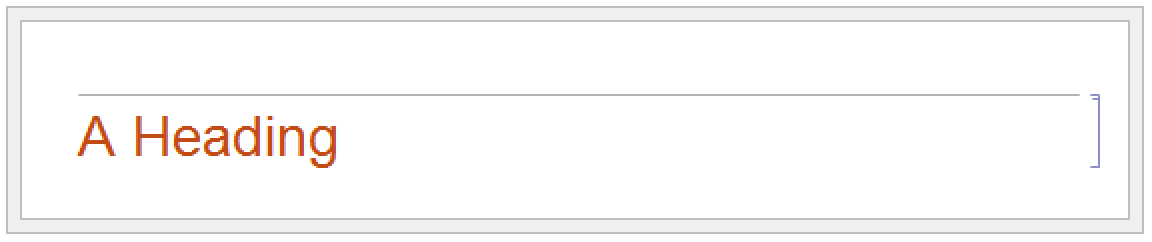
The Wolfram Language provides a large number of options for cells. All of these options can be accessed through the Option Inspector menu item in the front end. They can be set either directly at the level of individual cells or at a higher level, to be inherited by individual cells.
option | typical default value | |
| CellDingbat | None | a dingbat to use to emphasize the cell |
| CellFrame | False | whether to draw a frame around the cell |
| Background | None | the background color for the cell |
| ShowCellBracket | True | whether to display the cell bracket |
| Magnification | 1. | the magnification at which to display the cell |
| CellOpen | True | whether to display the contents of the cell |
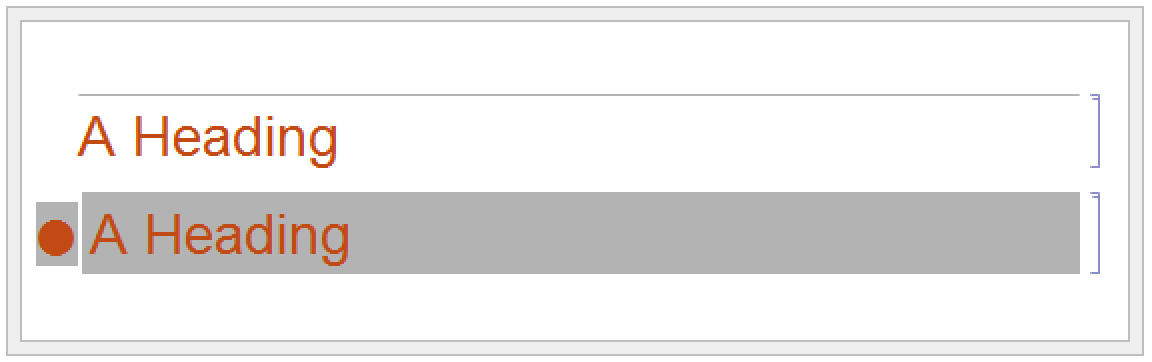
option | typical default value | |
| CellMargins | {{7,0},{4,4}} | outer margins in printer's points to leave around the contents of the cell |
| CellFrameMargins | 8 | margins to leave inside the cell frame |
| CellElementSpacings | list of rules | details of the layout of cell elements |
| CellBaseline | Baseline | how to align the baseline of an inline cell with text around it |
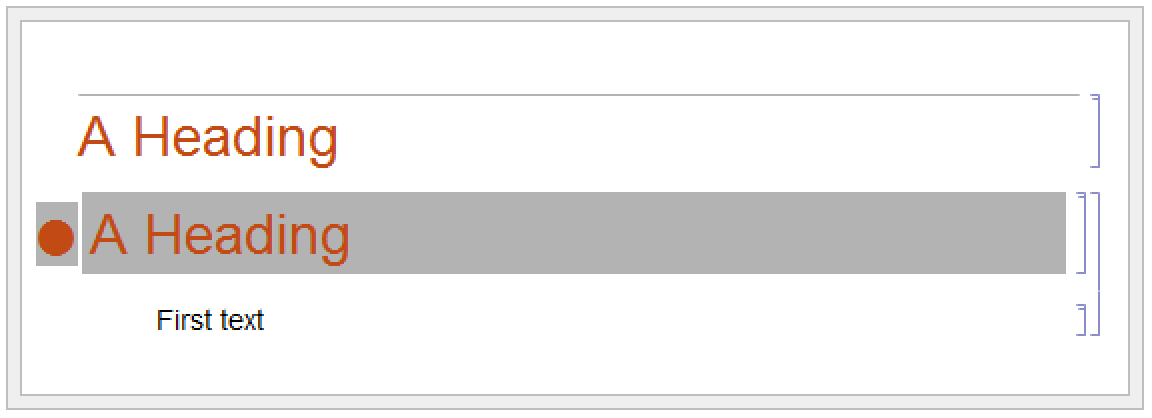
The option CellMargins allows you to specify both horizontal and vertical margins to put around a cell. You can set the horizontal margins interactively by using the margin stops in the ruler displayed when you choose the Toolbar ▶ Ruler menu item in the front end.
Whenever an option can refer to all four edges of a cell, the Wolfram Language follows the convention that the setting for the option takes the form {{left,right},{bottom,top}}. By giving nonzero values for the top and bottom elements, CellMargins can specify gaps to leave above and below a particular cell. The values are always taken to be in printer's points.
Almost every aspect of Wolfram System notebooks can be controlled by some option or another. More detailed aspects are typically handled by "aggregate options" such as CellElementSpacings. The settings for these options are lists of Wolfram Language rules, which effectively give values for a sequence of suboptions. The names of these suboptions are usually strings rather than symbols.
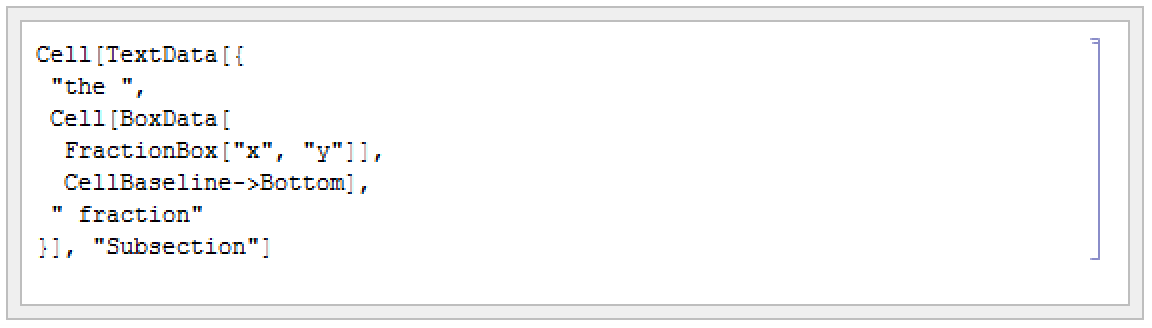
The Wolfram System allows you to embed cells inside pieces of text. The option CellBaseline determines how such "inline cells" will be aligned vertically with respect to the text around them. In direct analogy with the option BaselinePosition for a Grid, the option CellBaseline specifies what aspect of the cell should be considered its baseline.
Here is a cell containing an inline formula. The baseline of the formula is aligned with the baseline of the text around it.

Here is a cell in which the bottom of the formula is aligned with the baseline of the text around it.

This alignment is specified using the CellBaseline->Bottom setting.
option | typical default value | |
| CellLabel | "" | a label for a cell |
| ShowCellLabel | True | whether to show the label for a cell |
| CellLabelAutoDelete | True | whether to delete the label if the cell is modified |
| CellTags | {} | tags for a cell |
| ShowCellTags | False | whether to show tags for a cell |
| ConversionRules | {} | rules for external conversions |
In addition to the actual contents of a cell, it is often useful to associate various kinds of ancillary data with cells.
In a standard Wolfram System session, cells containing successive lines of kernel input and output are given labels of the form In[n]:= and Out[n]=. The option ShowCellLabel determines whether such labels should be displayed. CellLabelAutoDelete determines whether the label on a cell should be removed if the contents of the cell are modified. Doing this ensures that In[n]:= and Out[n]= labels are only associated with unmodified pieces of kernel input and output.
Cell tags are typically used to associate keywords or other attributes with cells, which can be searched for using functions like NotebookFind. Destinations for hyperlinks in Wolfram System notebooks are usually implemented using cell tags.
The option ConversionRules allows you to give a list containing entries such as "TeX"->data which specify how the contents of a cell should be converted to external formats. This is particularly relevant if you want to keep a copy of the original form of a cell that has been converted in Wolfram System notebook format from some external format.
option | typical default value | |
| Deletable | True | whether to allow a cell to be deleted interactively with the front end |
| Copyable | True | whether to allow a cell to be copied |
| Selectable | True | whether to allow the contents of a cell to be selected |
| Editable | True | whether to allow the contents of a cell to be edited |
| Deployed | False | whether the user interface in the cell is active |
The options Deletable, Copyable, Selectable, and Editable allow you to control what interactive operations should be allowed on cells. By setting these options to False at the notebook level, you can protect all the cells in a notebook.
Deployed allows you to treat the contents of a cell as if they were a user interface. In a user interface, labels are typically not selectable and controls such as buttons can be used, but not modified. Deployed can also be set on specific elements inside a cell so that, for example, the output of Manipulate is always deployed even if the cell it is in has the Deployed option set to False.
option | typical default value | |
| Evaluator | "Local" | the name of the kernel to use for evaluations |
| Evaluatable | False | whether to allow the contents of a cell to be evaluated |
| CellAutoOverwrite | False | whether to overwrite previous output when new output is generated |
| GeneratedCell | False | whether this cell was generated from the kernel |
| InitializationCell | False | whether this cell should automatically be evaluated when the notebook is opened |
The Wolfram Language makes it possible to specify a different evaluator for each cell in a notebook. But most often, the Evaluator option is set only at the notebook or global level, typically using the Kernel Configuration Options menu item in the front end.
The option CellAutoOverwrite is typically set to True for styles that represent Wolfram Language output. Doing this means that when you reevaluate a particular piece of input, the Wolfram Language will automatically delete the output that was previously generated from that input, and will overwrite it with new output.
The option GeneratedCell is set whenever a cell is generated by an external request to the front end rather than by an interactive operation within the front end. Thus, for example, any cell obtained as an output or side effect from a kernel evaluation will have GeneratedCell->True. Cells generated by low-level functions designed to manipulate notebooks directly, such as NotebookWrite and NotebookApply, do not have the GeneratedCell option set.
option | typical default value | |
| PageBreakAbove | Automatic | whether to put a page break just above a particular cell |
| PageBreakWithin | Automatic | whether to allow a page break within a particular cell |
| PageBreakBelow | Automatic | whether to put a page break just below a particular cell |
| GroupPageBreakWithin | Automatic | whether to allow a page break within a particular group of cells |
When you display a notebook on the screen, you can scroll continuously through it. But if you print the notebook out, you have to decide where page breaks will occur. A setting of Automatic for a page break option tells the Wolfram System to make a page break if necessary; True specifies that a page break should always be made, while False specifies that it should never be.
Page breaks set using the PageBreakAbove and PageBreakBelow options also determine the breaks between slides in a slide show. When creating a slide show, you will typically use a cell with a special named style to determine where each slide begins. This named style will have one of the page-breaking options set on it.
option | typical default value | |
| PageWidth | WindowWidth | how wide to assume the page to be |
| TextAlignment | Left | how to align successive lines of text |
| TextJustification | 0 | how much to allow lines of text to be stretched to make them fit |
| Hyphenation | False | whether to allow hyphenation |
| ParagraphIndent | 0 | how many printer's points to indent the first line in each paragraph |
If you have a large block of text containing no explicit newline characters, then the Wolfram System will automatically break your text into a sequence of lines. The option PageWidth specifies how long each line should be allowed to be.
| WindowWidth | the width of the window on the screen |
| PaperWidth | the width of the page as it would be printed |
| Infinity |
an infinite width (no line breaking)
|
| n | explicit width given in printer's points |
Settings for the PageWidth option in cells and notebooks.
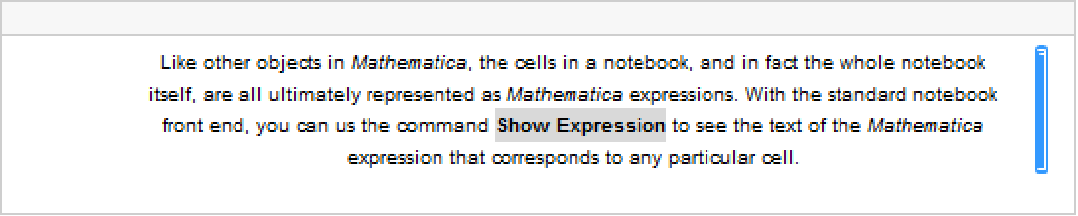
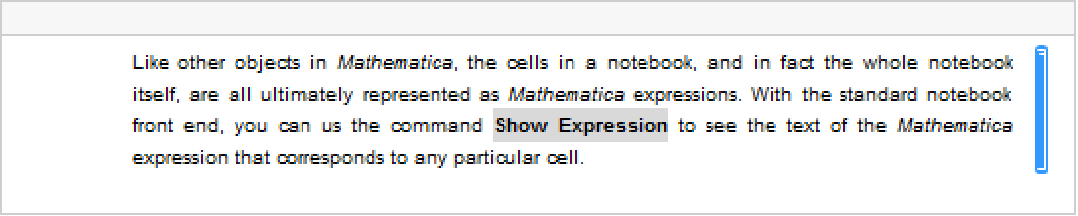
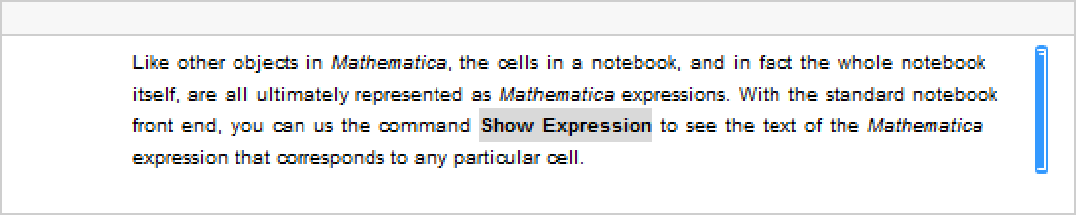
The option TextAlignment allows you to specify how you want successive lines of text to be aligned. Since the Wolfram System normally breaks text only at space or punctuation characters, it is common to end up with lines of different lengths. Normally the variation in lengths will give your text a ragged boundary. But the Wolfram System allows you to adjust the spaces in successive lines of text so as to make the lines more nearly equal in length. The setting for TextJustification gives the fraction of extra space which the Wolfram System is allowed to add. TextJustification->1 leads to "full justification" in which all complete lines of text are adjusted to be exactly the same length.
| Left | aligned on the left |
| Right | aligned on the right |
| Center | centered |
| x | aligned at a position x running from -1 to +1 across the page |
Settings for the TextAlignment option.
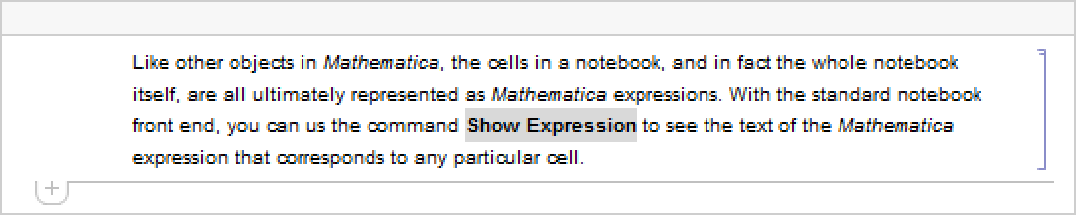
With TextAlignment->Center the text is centered.
TextJustification->1 adjusts word spacing so that both the left and right edges line up.
TextJustification->0.5 reduces the degree of raggedness, but does not force the left and right edges to be precisely lined up.
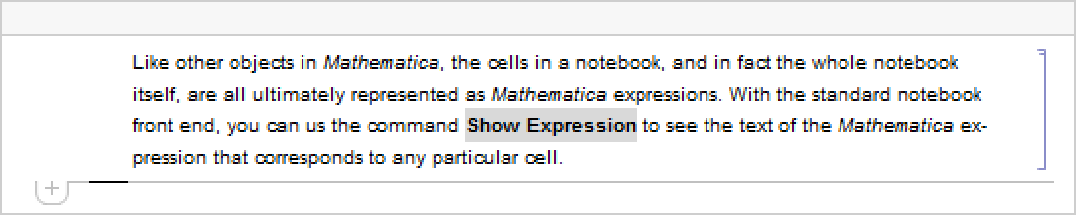
With Hyphenation->True the text is hyphenated.
When you enter a block of text in a Wolfram System notebook, the Wolfram System will treat any explicit newline characters that you type as paragraph breaks. The option ParagraphIndent allows you to specify how much you want to indent the first line in each paragraph. By giving a negative setting for ParagraphIndent, you can make the first line stick out to the left relative to subsequent lines.
| LineSpacing->{c,0} | leave space so that the total height of each line is c times the height of its contents |
| LineSpacing->{0,n} | make the total height of each line exactly n printer's points |
| LineSpacing->{c,n} | make the total height c times the height of the contents plus n printer's points |
| ParagraphSpacing->{c,0} | leave an extra space of c times the height of the font before the beginning of each paragraph |
| ParagraphSpacing->{0,n} | leave an extra space of exactly n printer's points before the beginning of each paragraph |
| ParagraphSpacing->{c,n} | leave an extra space of c times the height of the font plus n printer's points |
Here is some text with the default setting LineSpacing->{1,1}, which inserts just 1 printer's point of extra space between successive lines.
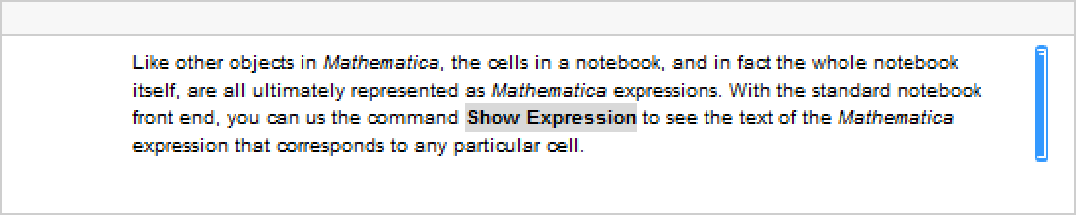
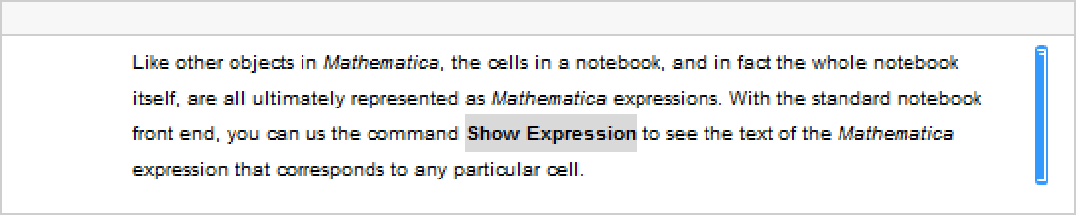
With LineSpacing->{1,5} the text is "looser".
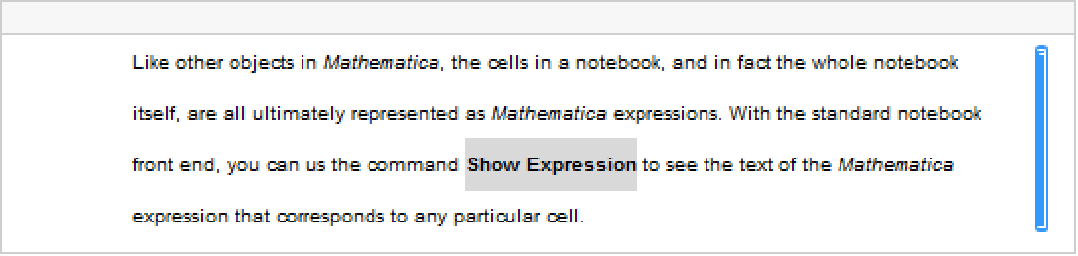
With LineSpacing->{1,-2} the text is tight.

option | typical default value | |
| FontFamily | "Courier" | the family of font to use |
| FontSubstitutions | {} | a list of substitutions to try for font family names |
| FontSize | 12 | the maximum height of characters in printer's points |
| FontWeight | "Bold" | the weight of characters to use |
| FontSlant | "Plain" | the slant of characters to use |
| FontTracking | "Plain" | the horizontal compression or expansion of characters |
| FontColor | GrayLevel[0] | the color of characters |
| Background | GrayLevel[1] | the color of the background for each character |
| FontWeight->"Plain" | text like this |
| FontWeight->"Bold" |
text like this
|
| FontWeight->"ExtraBold" | text like this |
| FontSlant->"Oblique" | text like this |
The Wolfram System allows you to specify the font that you want to use in considerable detail. Sometimes, however, the particular combination of font families and variations that you request may not be available on your computer system. In such cases, the Wolfram System will try to find the closest approximation it can. There are various additional options, such as FontPostScriptName, that you can set to help the Wolfram System find an appropriate font. In addition, you can set FontSubstitutions to be a list of rules that give replacements to try for font family names.
There are a great many fonts available for ordinary text. But for special technical characters, and even for Greek letters, far fewer fonts are available. The Wolfram System system includes fonts that were built to support all of the various special characters that are used by the Wolfram System. There are three versions of these fonts: ordinary (like Times), monospaced (like Courier), and sans serif (like Helvetica).
For a given text font, the Wolfram System tries to choose the special character font that matches it best. You can help the Wolfram System to make this choice by giving rules for "FontSerifed" and "FontMonospaced" in the setting for the FontProperties option. You can also give rules for "FontEncoding" to specify explicitly from what font each character is to be taken.
option | typical default value | |
| AutoIndent | Automatic | whether to indent after an explicit Return character is entered |
| DelimiterFlashTime | 0.3 | the time in seconds to flash a delimiter when a matching one is entered |
| ShowAutoStyles | True | whether to show automatic style variations for syntactic and other constructs |
| ShowCursorTracker | True | whether an elliptical spot should appear momentarily to guide the eye if the cursor position jumps |
| ShowSpecialCharacters | True | whether to replace ∖[Name] by a special character as soon as the ] is entered |
| ShowStringCharacters | True | whether to display " when a string is entered |
| SingleLetterItalics | False | whether to put single‐letter symbol names in italics |
| ZeroWidthTimes | False | whether to represent multiplication by a zero width character |
| InputAliases | {} | additional EscnameEsc aliases to allow |
| InputAutoReplacements | {"->"->"",…} | strings to automatically replace on input |
| AutoItalicWords | {} | words to automatically put in italics |
| LanguageCategory | "NaturalLanguage" | what category of language to assume a cell contains for spell checking and hyphenation |
Here is an expression entered with default options for a StandardForm input cell.

Here is the same expression entered in a cell with SingleLetterItalics->True and ZeroWidthTimes->True.

Built into the Wolfram Language are a large number of aliases for common special characters. InputAliases allows you to add your own aliases for further special characters or for any other kind of Wolfram Language input. A rule of the form "name"->expr specifies that EscnameEsc should immediately be replaced on input by expr.
Aliases are delimited by explicit Esc characters. The option InputAutoReplacements allows you to specify that certain kinds of input sequences should be immediately replaced even when they have no explicit delimiters. By default, for example, -> is immediately replaced by  . You can give a rule of the form "seq"->"rhs" to specify that whenever seq appears as a token in your input, it should immediately be replaced by rhs.
. You can give a rule of the form "seq"->"rhs" to specify that whenever seq appears as a token in your input, it should immediately be replaced by rhs. | "NaturalLanguage" | human natural language such as English |
| "Mathematica" | Wolfram Language input |
| "Formula" | mathematical formula |
| None | do no spellchecking or hyphenation |
Settings for LanguageCategory to control spellchecking and hyphenation.
The option LanguageCategory allows you to tell the Wolfram Language what type of contents it should assume cells have. This determines how spelling and structure should be checked, and how hyphenation should be done.
| GridBox[data,opts] | give options that apply to a particular grid box |
| StyleBox[boxes,opts] | give options that apply to all boxes in boxes |
| Cell[contents,opts] | give options that apply to all boxes in contents |
| Cell[contents,GridBoxOptions->opts] | give default options settings for all GridBox objects in contents |
As discussed in "Textual Input and Output", the Wolfram Language provides many options for specifying how expressions should be displayed. By using StyleBox[boxes,opts] you can apply such options to collections of boxes. But the Wolfram Language is set up so that any option that you can give to a StyleBox can also be given to a complete Cell object, or even a complete Notebook. Thus, for example, options like Background and LineIndent can be given to complete cells as well as to individual StyleBox objects.
There are some options that apply only to a particular type of box, such as GridBox. Usually these options are best given separately in each GridBox where they are needed. But sometimes you may want to specify default settings to be inherited by all GridBox objects that appear in a particular cell. You can do this by giving these default settings as the value of the option GridBoxOptions for the whole cell.
For most box types named XXXBox, the Wolfram Language provides a cell option XXXBoxOptions that allows you to specify the default options settings for that type of box. Box types which take options can also have their options set in a stylesheet by defining the XXX style. The stylesheets which come with the Wolfram System define many such styles.
■ Use the Option Inspector menu to change options interactively. |
■ Use SetOptions[obj,options] from the kernel. |
■ Use CreateWindow[options] to create a new notebook with specified options. |
option | typical default value | |
| StyleDefinitions | "Default.nb" | the basic stylesheet to use for the notebook |
| ScreenStyleEnvironment | "Working" | the style environment to use for screen display |
| PrintingStyleEnvironment | "Printout" | the style environment to use for printing |
In giving style definitions for a particular notebook, the Wolfram System allows you either to reference another notebook, or explicitly to include the Notebook expression that defines the styles.
option | typical default value | |
| CellGrouping | Automatic | how to group cells in the notebook |
| ShowPageBreaks | False | whether to show where page breaks would occur if the notebook were printed |
| NotebookAutoSave | False | whether to automatically save the notebook after each piece of output |
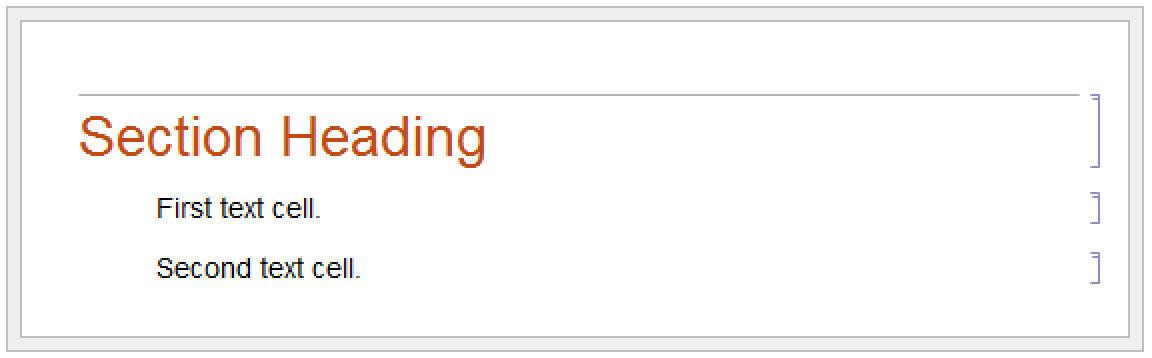
With CellGrouping->Automatic, cells are automatically grouped based on their style.
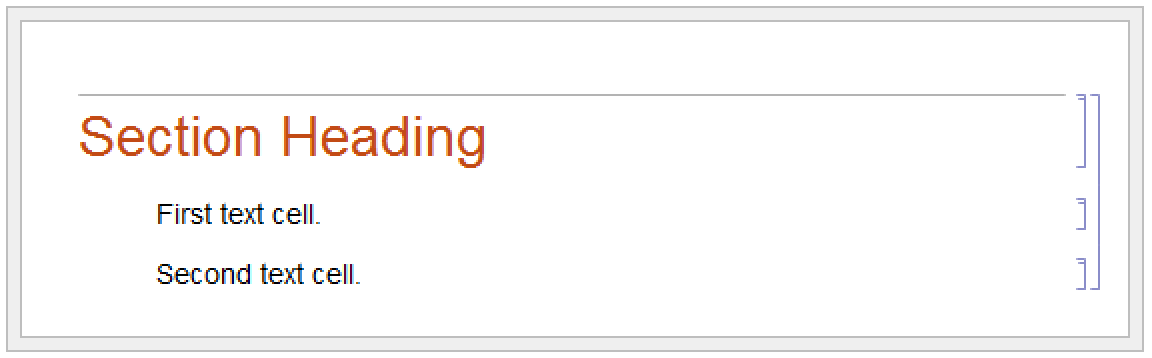
With CellGrouping->Manual, you have to group cells by hand.
option | typical default value | |
| DefaultNewCellStyle | "Input" | the default style for new cells created in the notebook |
| DefaultDuplicateCellStyle | "Input" | the default style for cells created by automatic duplication of existing cells |
The Wolfram Language allows you to take any cell option and set it at the notebook level, thereby specifying a global default for that option throughout the notebook.
option | typical default value | |
| Editable | True | whether to allow cells in the notebook to be edited |
| Selectable | True | whether to allow cells to be selected |
| Deletable | True | whether to allow cells to be deleted |
| ShowSelection | True | whether to show the current selection highlighted |
| Background | GrayLevel[1] | what background color to use for the notebook |
| Magnification | 1 | at what magnification to display the notebook |
| PageWidth | WindowWidth | how wide to allow the contents of cells to be |
Here is a notebook with the Background option set at the notebook level.

option | typical default value | |
| Visible | True | whether the window should be visible on the screen |
| WindowSize | {Automatic,Automatic} | the width and height of the window in printer's points |
| WindowMargins | Automatic | the margins to leave around the window when it is displayed on the screen |
| WindowFrame | "Normal" | the type of frame to draw around the window |
| WindowElements | {"StatusArea",…} | elements to include in the window |
| WindowTitle | Automatic | what title should be displayed for the window |
| WindowFloating | False | whether the window should always float on top of other windows |
| WindowClickSelect | True | whether the window should become selected if you click in it |
| DockedCells | {} | a list of cells specifying the content of a docked area at the top of the window |
WindowSize allows you to specify how large you want a window to be; WindowMargins allows you to specify where you want the window to be placed on your screen. The setting WindowMargins->{{left,right},{bottom,top}} gives the margins in pixels to leave around your window on the screen. Often only two of the margins will be set explicitly; the others will be Automatic, indicating that these margins will be determined from the particular size of screen that you use.
WindowClickSelect is the principal option that determines whether a window acts like a palette. Palettes are generally windows with content that acts upon other windows, rather than windows that need to be selected for their own ends. Palettes also generally have a collection of other option settings such as WindowFloating->True and WindowFrame->"Palette".
DockedCells allows you to specify any content that you want to stay at the top of a window and never scroll offscreen. A typical use of the DockedCells option is to define a custom toolbar. Many default stylesheets have the DockedCells option defined in certain environments to create toolbars for purposes such as presenting slide shows and editing package files.
| "Normal" | an ordinary window |
| "Palette" | a palette window |
| "ModelessDialog" | a modeless dialog box window |
| "ModalDialog" | a modal dialog box window |
| "ThinFrame" | an ordinary window with a thin frame |
| "Frameless" | an ordinary window with no frame at all |
| "Generic" | a window with a generic border |
Typical possible settings for WindowFrame.
The Wolfram System allows many different types of windows. The details of how particular windows are rendered may differ slightly from one computer system to another, but their general form is always the same. WindowFrame specifies the type of frame to draw around the window. WindowElements gives a list of specific elements to include in the window.
| "StatusArea" |
an area used to display status messages, such as those created by
StatusArea
|
| "MagnificationPopUp" | a popup menu of common magnifications |
| "HorizontalScrollBar" | a scrollbar for horizontal motion |
| "VerticalScrollBar" | a scrollbar for vertical motion |
Some typical possible entries in the WindowElements list.
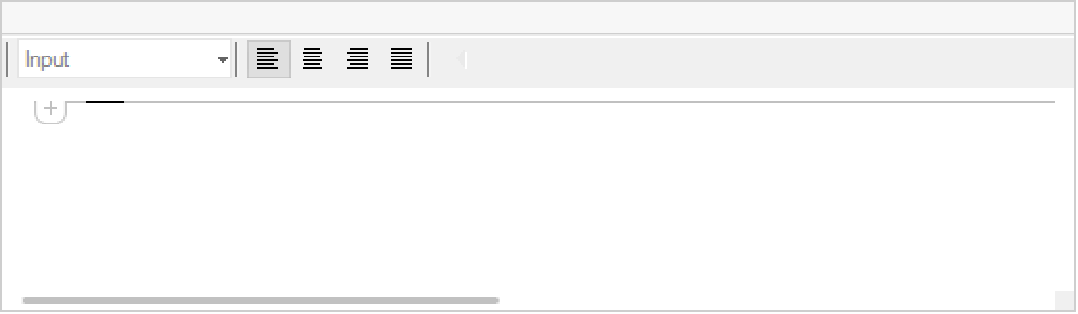
Here is a window with a status area and horizontal scrollbar, but no magnification popup or vertical scrollbar.
In the standard notebook front end, the Wolfram System allows you to set a large number of global options. The values of all these options are by default saved in a "preferences file", and are automatically reused when you run the Wolfram System again. These options include all the settings which can be made using the Preferences dialog.
style definitions | default style definitions to use for new notebooks |
file locations | directories for finding notebooks and system files |
data export options | how to export data in various formats |
character encoding options | how to encode special characters |
language options | what language to use for text |
message options | how to handle messages generated by the Wolfram System |
dialog settings | choices made in dialog boxes |
system configuration | private options for specific computer systems |